
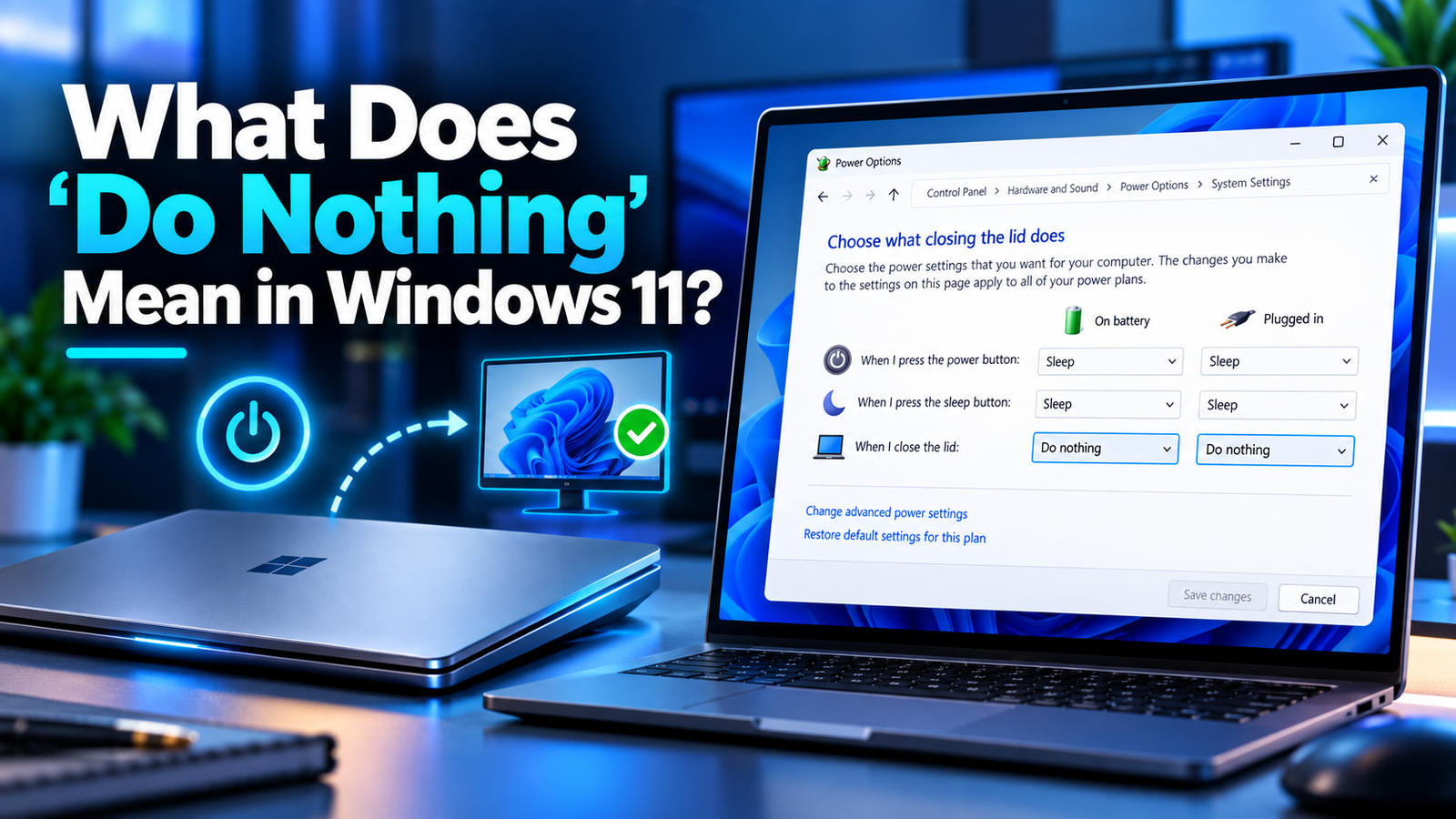
What does Do Nothing mean in Windows 11? This setting tells Windows not to perform a power action when you close your laptop lid, press the power button, or use the sleep button.
When Do nothing is selected, Windows will not automatically put your computer to sleep, hibernate, or shut it down when that specific action occurs. Instead, the computer remains running unless another power setting causes it to enter Sleep mode.
This guide explains what the setting does, how to enable it, and when it can be useful.
Table of Contents
What Does Do Nothing Mean in Windows 11?
The Do nothing option tells Windows to ignore a specific power-related action.
For example, if you configure:
When I close the lid → Do nothing
your laptop will continue running after you close the lid.
Windows will not automatically:
- Go to sleep
- Hibernate
- Shut down
Your applications, downloads, and background tasks can continue running as long as the computer remains powered and another power setting does not put it to sleep.
Understanding what does Do Nothing mean in Windows 11 is especially useful if you want to use your laptop with an external monitor while keeping the lid closed.
What Happens When You Close the Laptop Lid?
Many Windows laptops are configured to enter Sleep mode when the lid is closed.
However, changing the lid action to Do nothing prevents closing the lid from triggering Sleep, Hibernate, or Shut down.
After closing the lid:
- Windows can continue running
- Downloads can continue
- Applications can remain open
- Background tasks can continue
- An external monitor can remain active
This setup is particularly useful when you use a laptop with an external monitor, keyboard, mouse, or docking station.
How to Set Closing the Lid to “Do Nothing”
You can change the lid behavior through Control Panel.
Microsoft also provides official guidance on Windows power, sleep, and lid settings.
Follow these steps:
- Open the Start menu.
- Search for Control Panel.
- Open Control Panel.
- Select Hardware and Sound.
- Click Power Options.
- Select Choose what closing the lid does.
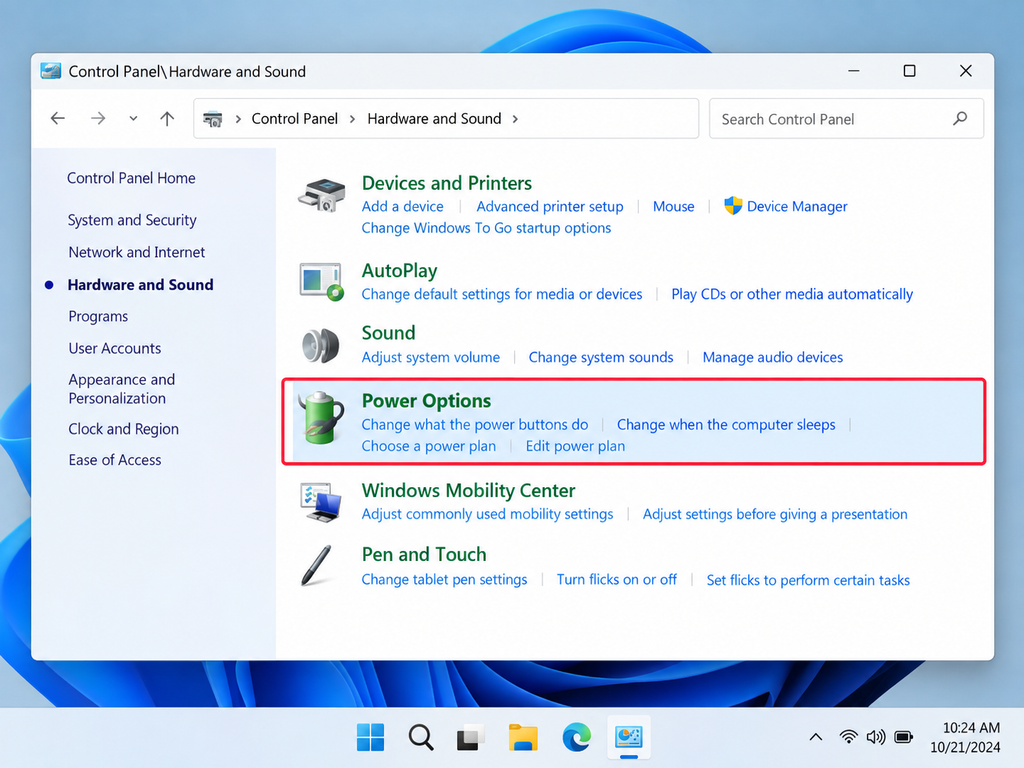
Open Power Options from Control Panel in Windows 11.You should now see the setting:
When I close the lid
Windows provides separate options for:
- On battery
- Plugged in
Open each dropdown menu and select Do nothing for the situations where you want the laptop to remain running.
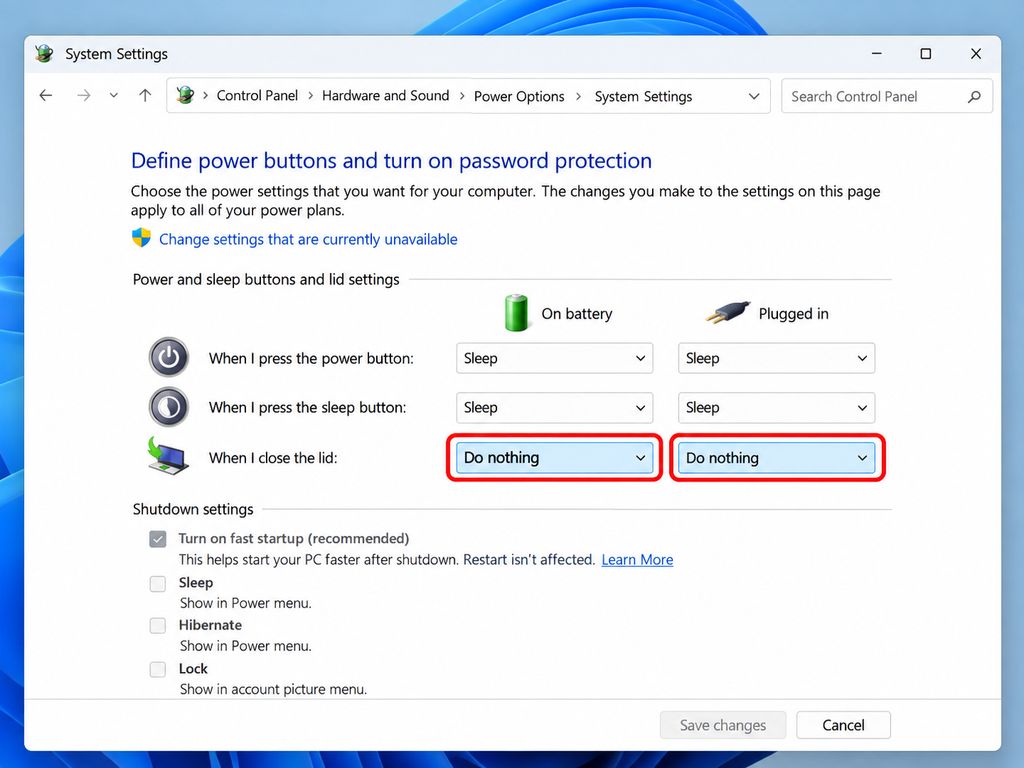
Set When I close the lid to Do nothing in Windows 11.For example:
On battery: Sleep
Plugged in: Do nothing
When you are finished, click Save changes.
On Battery vs Plugged In
Windows allows you to configure different lid behavior depending on whether your laptop is running on battery power or connected to a charger.
If you’re still wondering, what does Do Nothing mean in Windows 11? It means Windows ignores the selected power action and keeps the computer running.
A practical configuration is:
On battery: Sleep
Plugged in: Do nothing
With this setup, closing the lid while the laptop is unplugged puts the computer to sleep and helps conserve battery power.
When the laptop is connected to power, closing the lid allows Windows to continue running.
This is useful if you regularly connect your laptop to an external monitor or docking station.
Does “Do Nothing” Turn Off the Screen?
Closing the physical laptop lid makes the built-in display unavailable, but the computer itself can continue running.
If an external monitor is connected, Windows can continue displaying your desktop on that screen.
To change how Windows uses connected displays, press:
Windows + P
You can then choose from:
- PC screen only
- Duplicate
- Extend
- Second screen only
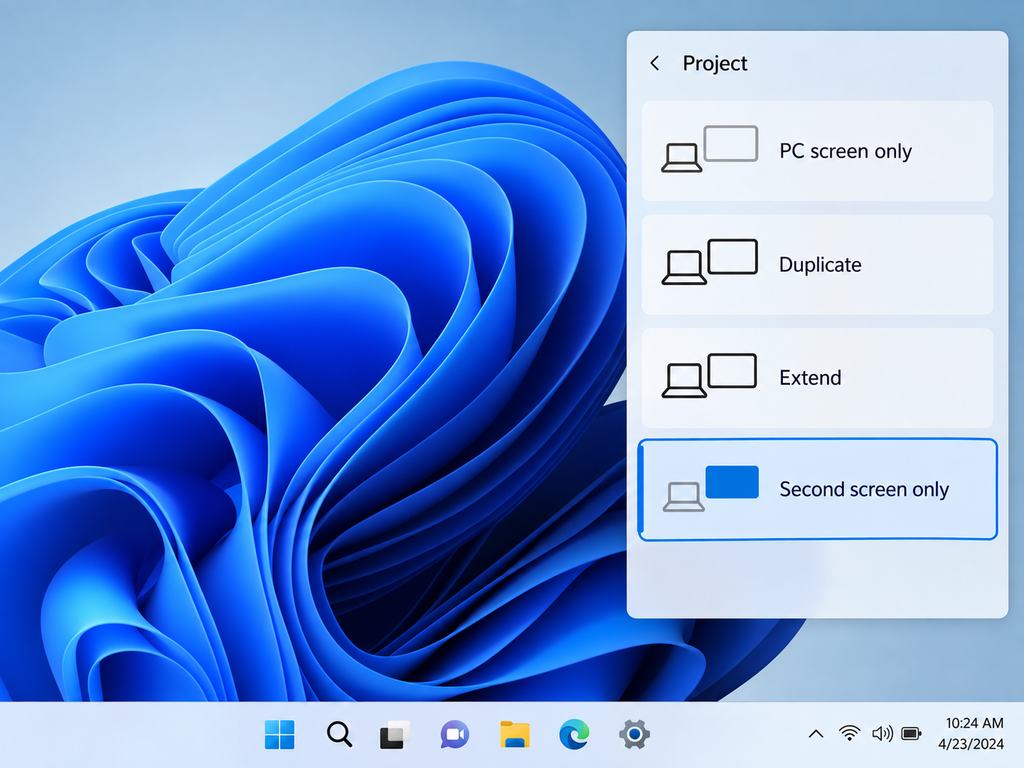
Press Windows + P and select Second screen only when using an external monitor.For a desktop-style setup with the laptop lid closed, Second screen only can be a useful option.
Does “Do Nothing” Prevent Sleep Completely?
No.
This is an important distinction when learning what does Do Nothing mean in Windows 11.
The setting only changes what happens when the specific action assigned to it occurs.
For example:
When I close the lid → Do nothing
means closing the lid will not directly trigger Sleep mode.
However, Windows can still put the computer to sleep because of its normal inactivity timer.
You can adjust those settings by opening:
Settings → System → Power & battery → Screen and sleep
Choose sleep settings that match how you use your laptop.
Can Downloads Continue With the Lid Closed?
Yes, as long as the computer remains awake.
When “When I close the lid” is set to “Do nothing,” closing the laptop lid should not stop Windows or automatically interrupt active tasks.
This can be useful for:
- Large file downloads
- Cloud backups
- Software updates
- File transfers
- Video rendering
- Other long-running applications
However, another Windows power setting may still put the computer to sleep after a period of inactivity.
If you need a long-running task to continue, check your Screen and sleep settings as well.
Is It Safe to Keep a Laptop Running With the Lid Closed?
In many situations, yes.
Laptops are commonly used with external monitors, keyboards, mice, and docking stations while the lid is closed.
However, proper ventilation is important.
Depending on the laptop design, heat may escape through vents located near the:
- Keyboard
- Hinges
- Sides
- Rear
- Bottom of the laptop
Avoid placing a running laptop inside:
- A backpack
- A drawer
- A closed cabinet
- A tightly enclosed space
The laptop can continue generating heat even when the display is closed.
Whenever possible, place it on a hard, stable, and well-ventilated surface.
What Does “Do Nothing” Mean for the Power Button?
The Do nothing option may also be available for:
When I press the power button
If you select Do nothing, pressing the power button will not trigger the power action normally assigned to that button.
The computer should remain running rather than automatically entering Sleep, Hibernate, or Shut down because of that button press.
Most users do not need this configuration, but it can be useful if the power button is easy to press accidentally.
What Does “Do Nothing” Mean for the Sleep Button?
Some laptops and keyboards include a dedicated sleep button.
If the sleep button action is configured as Do nothing, pressing that button will not trigger Sleep mode.
This does not disable Sleep throughout Windows.
It only changes the action assigned to that particular button.
This is another example of what does Do Nothing mean in Windows 11: Windows ignores the selected action rather than disabling the entire power-management system.
Does “Do Nothing” Use More Battery?
It can.
If you normally close your laptop lid and expect the computer to sleep, selecting Do nothing allows the system to remain active instead.
While running, the laptop may continue using power for:
- The processor
- Memory
- Wi-Fi
- Storage
- Background applications
- Connected devices
As a result, battery power may drain faster.
For many users, a practical setup is:
On battery: Sleep
Plugged in: Do nothing
This allows the laptop to save power when portable while remaining active when connected to a charger.
When Should You Use “Do Nothing”?
The setting is useful whenever you want the computer to continue running after a particular action.
Common examples include:
- Using an external monitor
- Using an external keyboard and mouse
- Connecting the laptop to a docking station
- Using remote desktop software
- Downloading large files
- Performing backups
- Transferring files
- Running long background tasks
If your main goal is to continue using your laptop while the lid is closed, you may also want to read our guide on how to keep a laptop running with the lid closed in Windows 11.
The Do nothing option is less suitable if you normally close your laptop and immediately place it inside a bag.
In that situation, Sleep or Hibernate is usually more practical because it reduces power consumption and heat generation.
Final Thoughts
So, what does Do Nothing mean in Windows 11?
Understanding what does Do Nothing mean in Windows 11 can help you choose the right power behavior for your laptop.
It simply tells Windows not to perform the selected power action when a specific event occurs.
When applied to closing the laptop lid, Do nothing allows Windows, applications, downloads, and background tasks to continue running even though the built-in display is closed.
It can be especially useful for external-monitor setups, docking stations, remote access, downloads, and other tasks that need the computer to remain awake.
Just remember that the laptop may continue consuming battery power and producing heat while it is running with the lid closed.
FAQ
Will my laptop keep running if I choose “Do nothing”?
Yes. If When I close the lid is set to Do nothing, closing the lid itself should not put Windows to sleep, hibernate the computer, or shut it down.
However, another power setting may still put the laptop to sleep after a period of inactivity.
Will Wi-Fi stay connected with the lid closed?
Usually, yes, as long as Windows remains awake.
If the computer later enters Sleep mode because of another power setting, the network connection may be interrupted.
Can I use an external monitor with the laptop lid closed?
Yes.
Set When I close the lid to Do nothing, connect the external monitor, and configure your preferred display mode in Windows.
Is “Do nothing” the same as disabling Sleep mode?
No.
The Do nothing option only changes what happens when a specific action occurs. Windows can still enter Sleep mode because of another power setting or inactivity timer.
Should I use “Do nothing” while on battery?
You can, but the laptop may continue consuming battery power after the lid is closed.
Using Sleep while on battery and Do nothing while plugged in is often a more practical configuration.
What does Do Nothing mean in Windows 11 Power Options?
It means Windows will ignore the selected power action. For example, if When I close the lid is set to Do nothing, closing the lid will not automatically put the computer to sleep, hibernate it, or shut it down.