
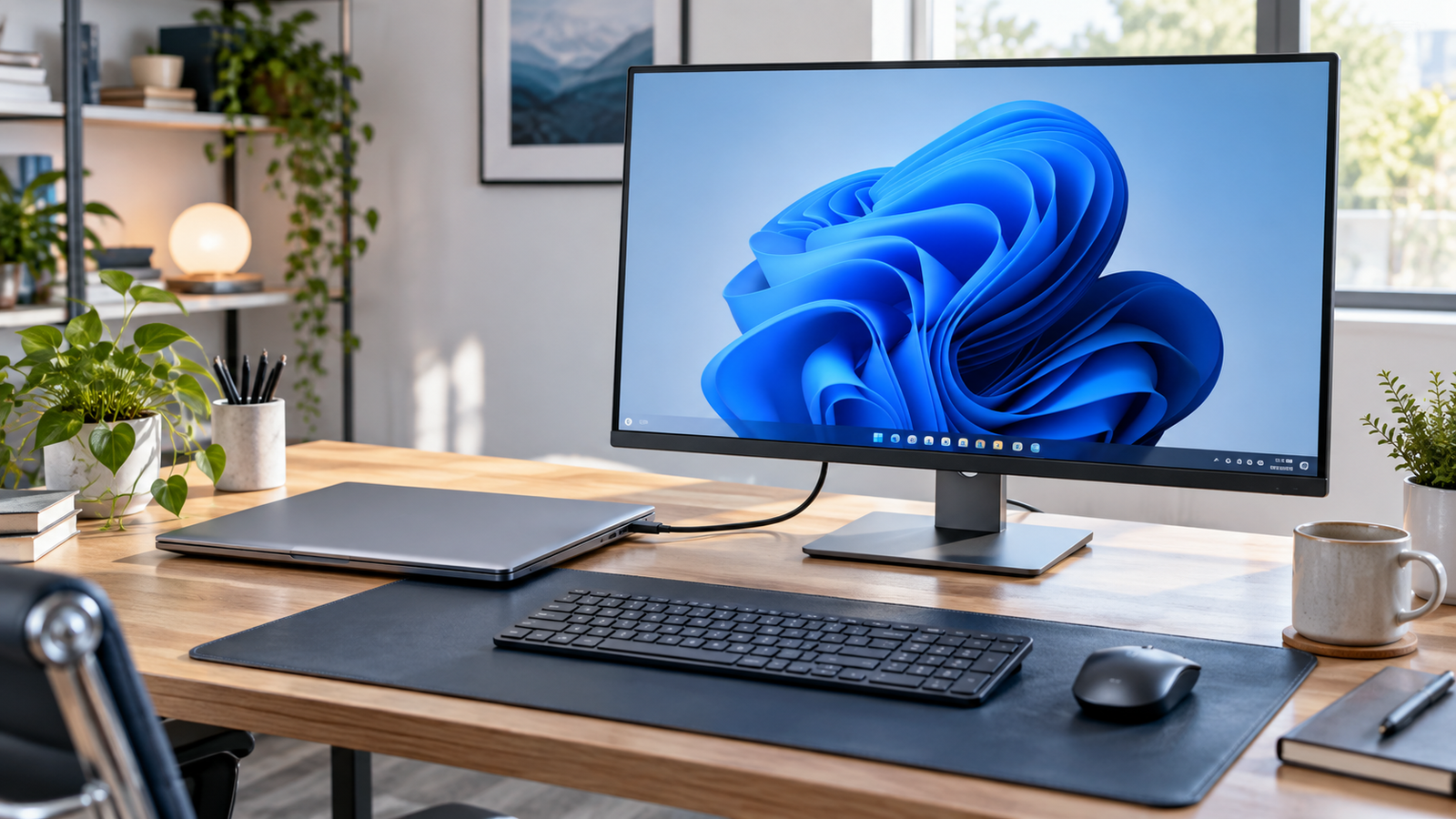
Closing a laptop lid normally puts the computer to sleep. That works well for most people, but there are situations where you may want your Windows 11 laptop to keep running even when the lid is closed.
For example, you might be using an external monitor, remotely accessing your computer, downloading a large file, or using your laptop as part of a desktop setup.
Windows lets you change what happens when the laptop lid is closed.
How to Keep a Windows 11 Laptop On With the Lid Closed
The easiest way is through the classic Windows Control Panel.
- Click the Search icon on the taskbar.
- Type Control Panel and open it.
- Select System and Security.
- Click Power Options.
- Select Choose what the power buttons do or Choose what closing the lid does.
- Find When I close the lid.
- Change the setting to Do nothing.
- Choose the setting separately for:
- On battery
- Plugged in
- Click Save changes.
Microsoft documents this same Control Panel path for changing laptop lid behavior.
Recommended Setting
For most desktop-style setups, a practical configuration is:
On battery: Sleep
Plugged in: Do nothing
This allows the laptop to keep running when it is connected to power and used with an external monitor, while still helping conserve battery when you are away from an outlet.
Windows allows separate lid behavior for battery and plugged-in operation.
Using a Laptop With an External Monitor
If you use your laptop like a desktop computer, you can connect:
- an external monitor
- keyboard
- mouse
- charger
Then set When I close the lid → Plugged in → Do nothing.
After closing the laptop lid, Windows should continue running and your external display can remain active.
If the external monitor turns off, press a key or move your mouse. You may also need to make sure the external monitor is selected in:
Settings → System → Display
Using Remote Access With the Lid Closed
This setting is also useful if you remotely control your laptop with software such as Remote Desktop or another remote-access application.
If the computer goes to sleep when the lid closes, remote access usually becomes unavailable until the laptop wakes again.
Setting the lid action to Do nothing allows Windows to continue running after the lid is closed.
Keep in mind that the laptop still needs:
- power
- a working network connection
- the remote-access software running
- appropriate remote-access permissions
What Does “Do Nothing” Mean?
When Do nothing is selected, Windows does not automatically put the system to sleep, hibernate it, or shut it down just because the lid was closed.
Microsoft defines the available lid-close actions as follows.
- Do nothing — no action is taken
- Sleep — the PC enters sleep
- Hibernate — the system enters hibernation
- Shut down — the computer shuts down
The laptop’s built-in screen will normally turn off when the lid is physically closed, but the computer itself can continue operating.
Is It Safe to Run a Laptop With the Lid Closed?
Usually, yes, but make sure the laptop can cool itself properly.
Some laptops pull air through vents around the keyboard or chassis. Avoid placing a closed laptop inside a drawer, bag, or other enclosed space while it is running.
A good setup should:
- keep ventilation openings clear
- use a hard, flat surface
- avoid covering the laptop
- keep the charger and cables properly connected
If the laptop becomes unusually hot, open the lid or improve airflow around the device.
What If “Do Nothing” Is Missing?
Microsoft Support notes that some power-related options can depend on the PC’s hardware and manufacturer.
Try these steps:
Restart Windows and check Control Panel → Power Options again.
Also install available Windows updates and check your laptop manufacturer’s support page for chipset, BIOS, or power-management updates.
Laptop Still Goes to Sleep After Closing the Lid
If your laptop still goes to sleep after selecting Do nothing, check the following:
1. Verify both power settings
Make sure Plugged in is set to Do nothing.
2. Save the changes
Click Save changes before closing Control Panel.
3. Check additional sleep settings
Go to Settings → System → Power & battery and review your screen and sleep settings.
4. Restart the laptop
Restarting Windows can help apply power-management changes correctly.
5. Check manufacturer utilities
Some laptop manufacturers include their own battery or power-management software that can affect Windows behavior.
Should You Use “Do Nothing” on Battery?
You can, but it may not be ideal for everyday use.
If the lid is closed while the laptop continues running on battery, background apps and other processes can continue using power.
For most users, a practical configuration is:
On battery: Sleep
Plugged in: Do nothing
How to Restore the Default Behavior
If you later want the laptop to sleep normally when the lid closes, open:
Control Panel → System and Security → Power Options → Choose what closing the lid does
Change When I close the lid back to Sleep, then click Save changes.
Final Thoughts
Windows 11 makes it easy to keep your laptop running while the lid is closed.
For an external-monitor or remote-access setup, Plugged in → Do nothing is usually the most practical option.
For normal portable use, keeping On battery → Sleep can help avoid unnecessary battery drain.
Once configured, your laptop can work much more like a desktop PC while still giving you the flexibility of a portable computer.