
Are your Android apps crashing or closing unexpectedly? You may notice an app freezing, closing as soon as you open it, or repeatedly stopping while you are using it.
The problem may affect only one app or several apps at the same time. In many cases, the cause is temporary and can be fixed without resetting your phone.
Common causes include outdated apps, corrupted cache files, low storage space, software bugs, Android system issues, or problems with the app itself.
If Android apps crashing has become a frequent problem on your phone, work through the solutions below from the simplest fixes to the more advanced troubleshooting steps.
Table of Contents
Why Are Android Apps Crashing or Closing?
Android apps can crash for several reasons.
Common causes include:
- Temporary app errors
- Outdated apps
- Outdated Android software
- Corrupted cache files
- Low storage space
- Not enough available memory
- Poor internet connection
- Problems with Android System WebView
- Bugs in a recent app update
- App permissions not working correctly
If only one app is crashing, the issue is usually related to that specific app.
If several apps are crashing at the same time, the problem may be related to Android, available storage, system components, or the phone itself.
1. Close the App and Open It Again
Start with the simplest solution.
Open your recent apps screen and swipe the problematic app away to close it completely.
Then open the app again.
A temporary error may disappear after the app restarts.
If the app still crashes, continue with the next steps.
2. Restart Your Android Phone
Restarting your phone clears temporary processes and can fix minor software problems.
Press and hold the power button, then select:
Restart
After the phone turns back on, open the affected app again.
This step is especially useful if several apps have started behaving strangely at the same time.
3. Update the App
An outdated app may contain bugs that have already been fixed by the developer.
Open the Google Play Store and search for the app.
If an update is available, tap:
Update
You can also check multiple apps by opening:
Google Play Store → Profile icon → Manage apps & device
Install available updates and test the app again.
If Android apps crashing started after a system or app change, keeping your apps up to date is one of the easiest things to check first.
4. Clear the App Cache
Android apps store temporary files in a cache.
These files normally help apps load faster, but corrupted cache data can sometimes cause crashes.
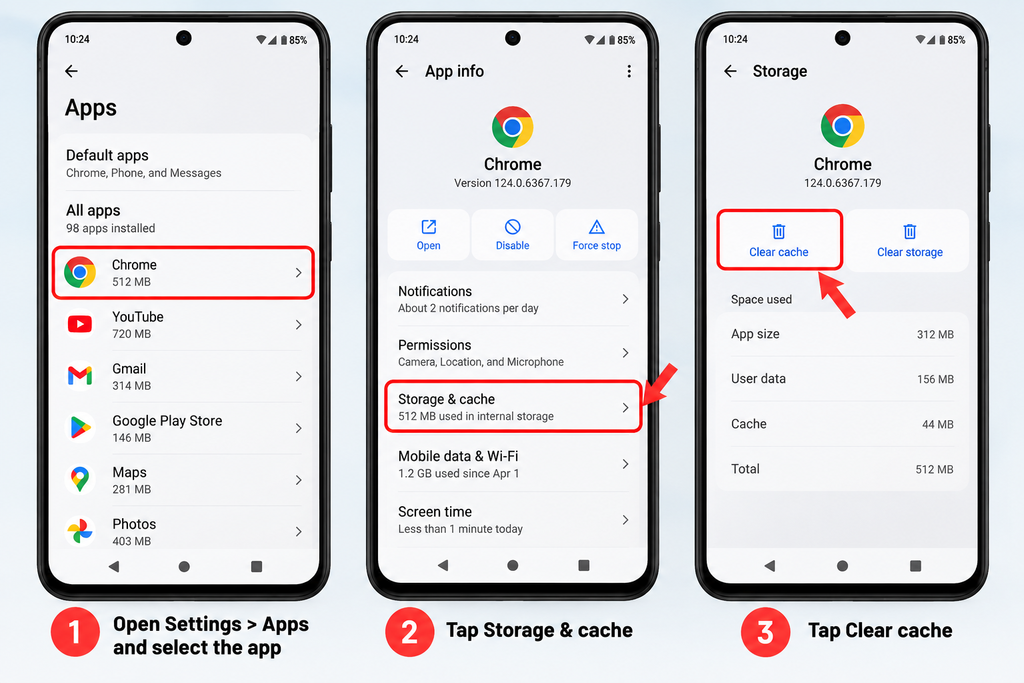
To clear an app’s cache:
- Open Settings.
- Select Apps.
- Choose the app that keeps crashing.
- Open Storage or Storage & cache.
- Tap Clear cache.
The exact menu names may vary depending on your phone manufacturer and Android version.
Clearing the cache does not normally delete your account or personal app data.
Open the app again and check whether the problem is fixed.
5. Force Stop the App
If an app continues running incorrectly in the background, forcing it to stop can help.
Go to:
Settings → Apps → Select the app
Tap:
Force stop
Then open the app again.
This completely stops the current app process and allows Android to start it fresh.
6. Check Your Phone’s Storage
Apps may become unstable if your phone is almost out of storage space.
Open:
Settings → Storage
Check how much free space remains.
If your storage is almost full, remove files you no longer need.
You can free up space by deleting:
- Old videos
- Duplicate photos
- Downloads you no longer need
- Unused apps
- Large files
- Offline media
Keeping some free storage available can help Android and installed apps work more reliably.
7. Update Android
Android updates can include bug fixes, security improvements, and compatibility updates.
Check for updates by opening:
Settings → System → Software update
or:
Settings → Software update
The location of this option depends on your phone manufacturer.
Install any available updates and restart the phone afterward.
Then test the app again.
8. Update Android System WebView
Some Android apps use a system component called Android System WebView to display web content inside apps.
If WebView has a problem, certain apps may crash or fail to open correctly.
Open the Google Play Store and search for:
Android System WebView
If an update is available, install it.
You should also check for an update to Google Chrome, because Chrome and WebView can be closely related on many Android devices.
Restart your phone after updating.
9. Check Your Internet Connection
Some apps may become unresponsive or fail to work correctly if they cannot connect to their servers.
Try opening a website in your browser.
If the internet is not working properly, switch between:
- Wi-Fi
- Mobile data
You can also briefly turn Airplane Mode on and off.
If the app works on mobile data but not on Wi-Fi, your network connection may be the cause.
Internal link: If your Android phone shows a Wi-Fi connection but still has no internet access, see our guide “How to Fix Android Phone Connected to Wi-Fi but No Internet.”
10. Check App Permissions
Some apps need permission to access certain phone features.
If an important permission is disabled, the app may not work correctly.
Go to:
Settings → Apps → Select the app → Permissions
Review the available permissions.
Only enable permissions that make sense for the app.
For example, a camera app may need camera access, while a navigation app may need location access.
Open the app again after changing permissions.
11. Clear App Data
If clearing the cache does not work, you can try clearing the app’s stored data.
Go to:
Settings → Apps → Select the app → Storage
Tap:
Clear storage
or:
Clear data
Be careful with this option.
Clearing app data can:
- Sign you out
- Remove app settings
- Delete locally stored information
- Reset the app to its default state
Make sure important information is backed up or synced before continuing.
After clearing the data, open the app and sign in again if necessary.
12. Uninstall and Reinstall the App
If the app still crashes, reinstalling it can replace damaged or corrupted app files.
Before uninstalling the app, make sure any important information is backed up or synced to your account.
Then:
- Uninstall the app.
- Restart your phone.
- Open the Google Play Store.
- Install the app again.
After reinstalling, test the app before changing additional settings.
13. Disable Battery Restrictions Temporarily
Some Android phones aggressively limit apps that run in the background to save battery.
This can occasionally cause apps to close unexpectedly.
Open:
Settings → Apps → Select the app → Battery
Look for options such as:
- Unrestricted
- Optimized
- Restricted
If the app needs to run in the background, try selecting Optimized or Unrestricted temporarily.
Do not use Unrestricted for every app because it can increase battery consumption.
14. Check Whether the App Is Down
Sometimes the problem is not your phone.
The app’s servers may be experiencing a temporary outage.
If an app suddenly stops working for many users, restarting or reinstalling it may not solve the problem until the service is restored.
You can try:
- Visiting the app’s official website
- Checking its official support page
- Checking for service-status announcements
- Trying the app again later
If every other app works normally, a temporary service outage may be the cause.
15. Check for a Problematic App Update
An app can sometimes begin crashing immediately after an update.
If the issue started right after updating the app, the newest version may contain a bug.
In this situation, you can:
- Check for another update
- Wait for the developer to release a fix
- Contact the app developer
- Use the web version temporarily, if available
Avoid downloading older APK files from unknown websites because they may create security risks.
What If Several Android Apps Are Crashing?
If several Android apps are crashing, the problem may not be limited to one app.
Try these steps:
- Restart your phone.
- Update Android.
- Update all installed apps.
- Update Android System WebView.
- Update Google Chrome.
- Check available storage.
- Restart the phone again.
If the crashes started after installing a new app, temporarily remove that app and test the phone again.
Does Low RAM Cause Apps to Close?
It can.
Android automatically manages memory and may close background apps when the phone needs more RAM.
This is normal behavior.
However, if apps close while you are actively using them, there may be another problem.
You can reduce memory pressure by closing apps you are not using and restarting your phone.
Phones with less RAM may also reload apps more frequently than devices with more available memory.
Should You Use a RAM Cleaner App?
Usually, you do not need one.
Android already includes its own memory management system.
Third-party RAM cleaner apps may repeatedly close background apps, which can sometimes make the phone feel slower because those apps have to reload again.
Instead, focus on:
- Keeping Android updated
- Removing unused apps
- Maintaining enough free storage
- Updating installed apps
- Restarting the phone when necessary
When Should You Factory Reset Your Phone?
A factory reset should be a last resort.
It erases personal data and returns the phone to its original software state.
Before considering a factory reset, try:
- Updating Android
- Updating apps
- Clearing app cache
- Reinstalling the affected app
- Checking available storage
- Removing recently installed apps
If several apps continue crashing after all other troubleshooting steps have failed, back up your important files before considering a factory reset.
Final Thoughts
If Android apps are crashing or closing unexpectedly, start with simple fixes such as restarting the app, restarting your phone, and installing available updates.
Clearing the app cache, checking available storage, updating Android System WebView, reviewing permissions, and reinstalling the affected app can solve many persistent problems.
If only one app crashes, the problem is more likely related to that particular app.
If several apps crash at the same time, check Android updates, available storage, Android System WebView, and recently installed apps first.
A factory reset should only be considered after the simpler troubleshooting steps have failed.
FAQ
Why does an app close immediately after I open it?
The app may have corrupted cache files, an outdated version, or a temporary software problem. Restart the app, update it, and clear its cache first.
Will clearing an app’s cache delete my data?
Usually, no. Clearing the cache removes temporary files but normally keeps your account, settings, and personal data.
What is the difference between clear cache and clear data?
Clear cache removes temporary files.
Clear data or Clear storage resets the app and may remove settings, accounts, and locally stored information.
Why are multiple apps crashing on my Android phone?
Multiple app crashes can be caused by Android software problems, low storage, outdated system components, recently installed apps, or a recent software update.
Should I reinstall an app if it keeps crashing?
Reinstalling can help if restarting, updating, and clearing the cache do not solve the problem because it replaces the app’s installed files.