
iPhone battery draining fast after iOS update? You may notice the battery percentage dropping faster than usual, your iPhone feeling warmer, or needing to charge more often even though your daily usage has not changed.
This does not necessarily mean the update damaged your battery. After installing iOS, your iPhone may continue performing background tasks such as indexing files, updating apps, syncing data, and completing system changes.
Apple notes that battery life can temporarily be shorter after an update while these background activities are still running. On recent iOS versions, you may even see an Ongoing iOS Update insight under Battery settings while the process continues. Apple Support
In many cases, battery life improves after a few days. If the problem continues, work through the fixes below.
Table of Contents
Why Is My iPhone Battery Draining Fast After an iOS Update?
After installing an iOS update, your iPhone may need additional time to finish background processes.
During this period, the device can temporarily consume more power and may feel warmer than usual.
Common causes of battery drain after an iOS update include:
- Post-update background activity
- Apps using excessive battery power
- Apps that need updating
- Background App Refresh
- High screen brightness
- Location activity
- Frequent notifications
- Weak cellular signal
- An aging battery
- A software bug in the current iOS version
If your iPhone battery is draining fast after an iOS update, start with the simple steps below before changing more advanced settings.
1. Wait a Few Days After Updating iOS
If the battery problem started immediately after installing an iOS update, waiting may be the simplest solution.
Even though your iPhone is ready to use after the update finishes, some update-related tasks may continue running in the background.
These tasks can temporarily affect both battery life and device temperature.
Continue using your iPhone normally for a few days and monitor whether battery performance improves.
You can also open:
Settings → Battery
On recent iOS versions, you may see an insight indicating that an iOS update is still being completed in the background. Apple recommends waiting a few days after an update before evaluating battery life again. Apple Support
If battery drain remains unusually high after several days, continue with the next steps.
2. Check Battery Usage by App
One of the best ways to diagnose battery drain is to see which apps are actually consuming power.
Checking Battery Usage can help identify what is causing the iPhone battery draining fast after iOS update problem.
Open:
Settings → Battery
Scroll down to review app and system battery usage.
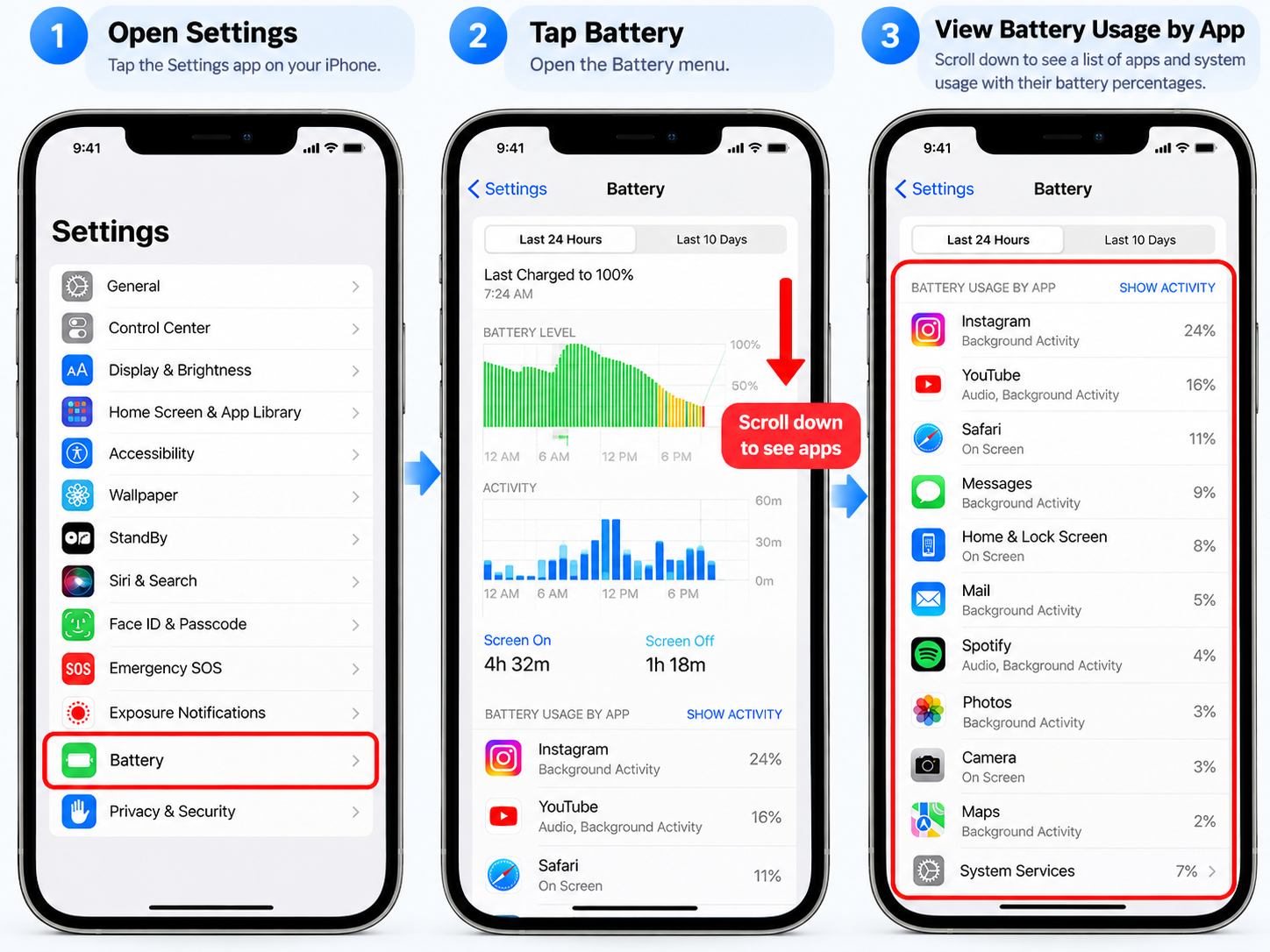
Open Settings → Battery, then scroll down to review Battery Usage by App and identify apps using unusually high battery power.Depending on your iOS version, you can also tap an app to see more information about how it used the battery.
Look for apps using significantly more battery than expected.
You may see information such as:
- On-screen activity
- Background activity
- Notifications
- Cellular activity
- Low signal usage
Apple’s Battery settings can show how much power individual apps and system activities are using, including background activity and poor cellular signal. Apple Support
If one app is consuming unusually high battery power, update it first and consider reducing its background activity.
3. Restart Your iPhone
A restart can clear temporary software processes that may have developed after an iOS update.
Turn off your iPhone, wait several seconds, then turn it back on.
Restarting your iPhone does not delete your:
- Photos
- Apps
- Messages
- Accounts
- Other personal data
After restarting, use the phone normally for a while and check whether battery drain improves.
4. Update Your Apps
Some apps may not be fully optimized for a newly released iOS version.
Open the App Store, tap your profile picture, then check for available updates.
Install updates for apps you regularly use.
App updates may include:
- Compatibility fixes
- Bug fixes
- Performance improvements
- Battery optimizations
If the battery started draining quickly after the iOS update and one particular app is using a large amount of power, updating that app is especially important.
5. Reduce Background App Refresh
Background App Refresh allows supported apps to update content even when you are not actively using them.
Open:
Settings → General → Background App Refresh
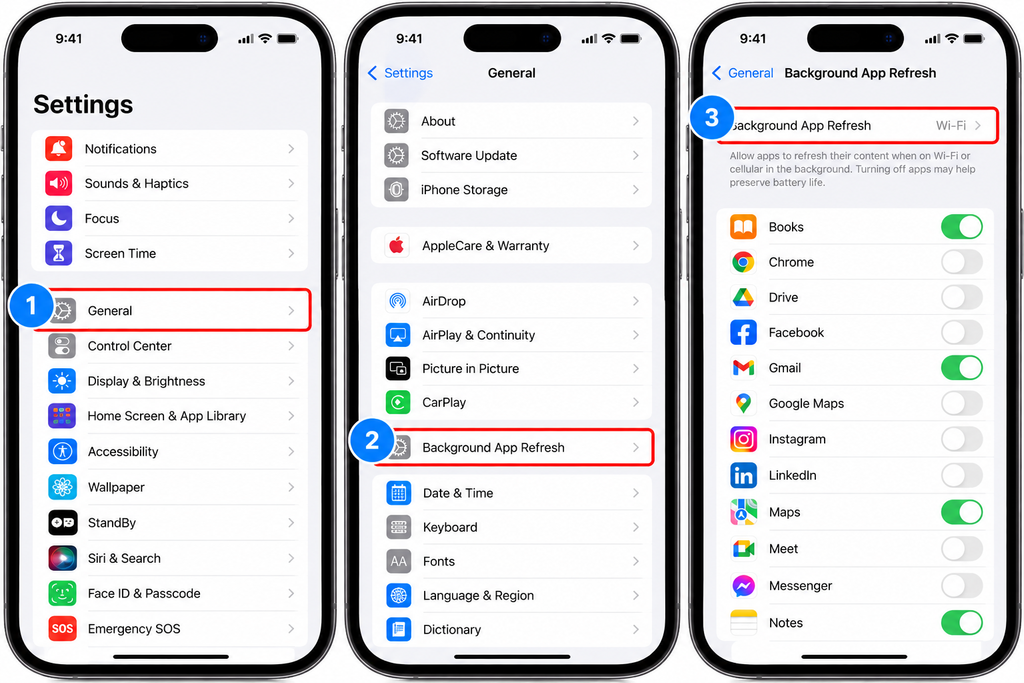
Open Settings → General → Background App Refresh, then disable background refresh for apps that do not need to update when you are not using them.Review the apps listed there.
You do not need to disable Background App Refresh for every app.
Instead, turn it off for apps that do not need to regularly update in the background.
For example, some shopping, gaming, or entertainment apps may not need frequent background access.
Reducing unnecessary background activity can help improve battery life.
Low Power Mode also temporarily reduces or disables Background App Refresh and other power-consuming features. Apple Support
6. Lower Screen Brightness
The display can consume a significant amount of battery power.
Open Control Center and reduce the screen brightness to a comfortable level.
You can also use Auto-Brightness so the iPhone adjusts brightness according to the surrounding environment.
Another useful setting is Auto-Lock.
Open:
Settings → Display & Brightness → Auto-Lock
Choose a shorter interval if your screen often remains on when you are not using the phone.
Apple may also show battery recommendations when brightness or Auto-Lock settings are contributing to higher battery consumption. Apple Support
7. Review Location Services
Some apps may use your location even when you are not actively interacting with them.
Open:
Settings → Privacy & Security → Location Services
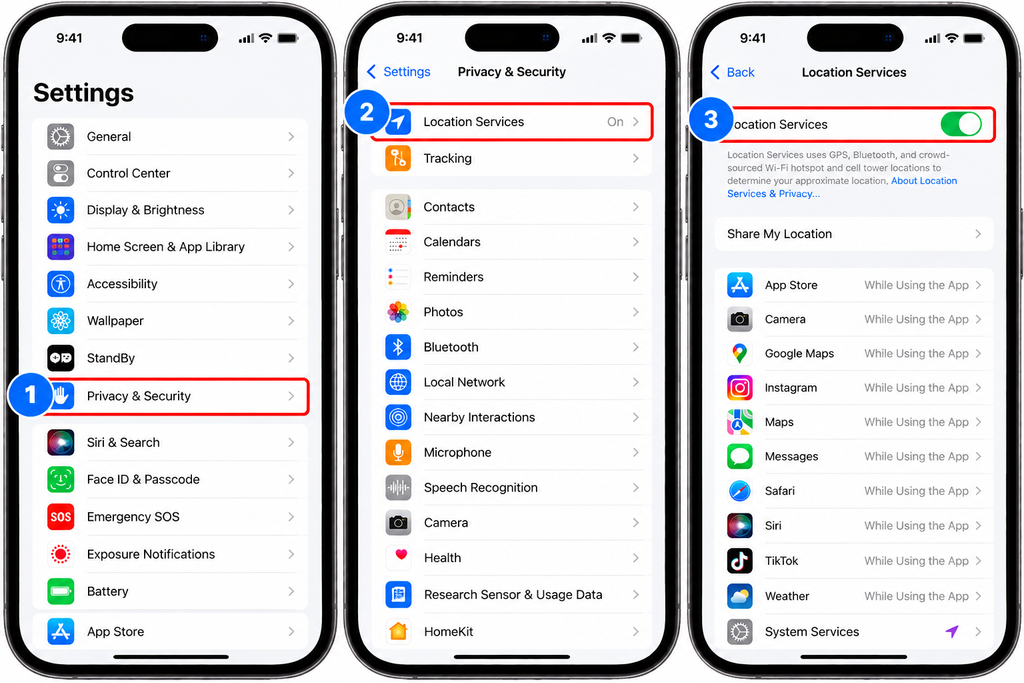
Open Settings → Privacy & Security → Location Services, then review each app and choose an appropriate location permission such as While Using the App.Review the permission assigned to each app.
Depending on the app, available options may include:
- Never
- Ask Next Time or When I Share
- While Using the App
- Always
For apps that do not need continuous location access, While Using the App may be more appropriate.
Do not disable Location Services completely just to save battery. Navigation, weather, ride-sharing, Find My, and other features may depend on location access.
Apple allows location permissions to be configured individually for each app. Apple Support
8. Reduce Unnecessary Notifications
Frequent notifications can wake the display and cause additional app activity.
Open:
Settings → Notifications
Review apps that send large numbers of notifications.
Turn off notifications that are not useful or urgent.
You can keep important notifications enabled for apps such as messaging, banking, security, and other services you rely on.
Reducing unnecessary notifications may help reduce how frequently the device wakes during the day.
9. Turn On Low Power Mode
Low Power Mode can help extend battery life while you troubleshoot unusual battery drain.
Low Power Mode can be useful while troubleshooting an iPhone battery draining fast after iOS update issue.
On newer iPhone models, open:
Settings → Battery → Power Mode
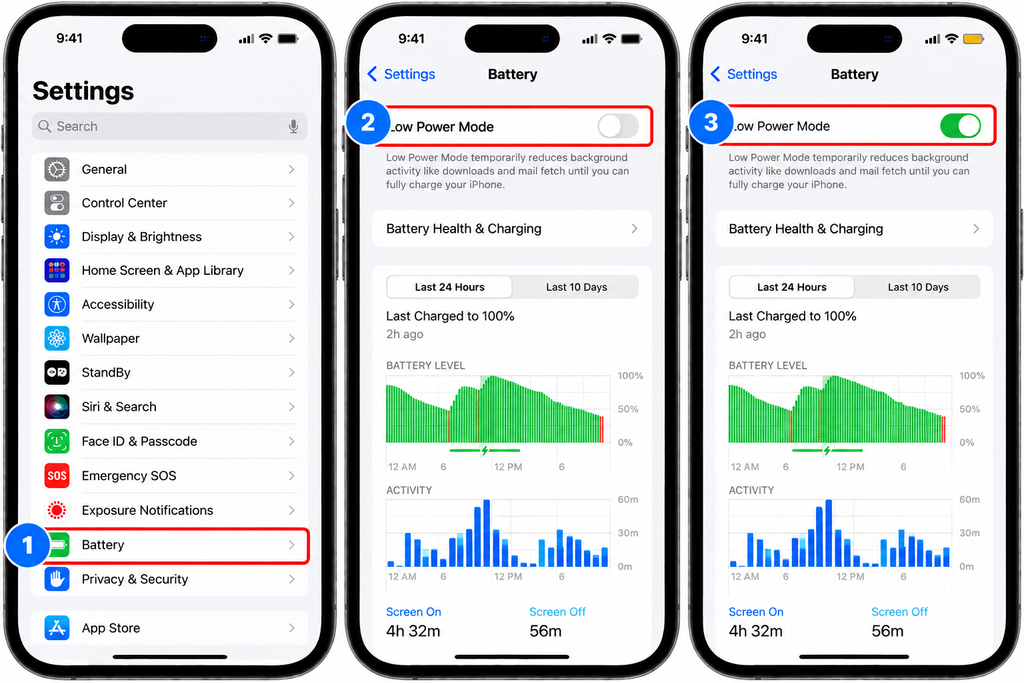
Open Settings → Battery, then turn on Low Power Mode to reduce background activity and help extend battery life.Then enable:
Low Power Mode
On some older iPhone models, Low Power Mode appears directly under:
Settings → Battery
When enabled, Low Power Mode reduces power consumption by limiting certain background activities and features.
Depending on the device, this can include Background App Refresh, automatic downloads, some visual effects, and other nonessential activity. Apple Support
The battery icon turns yellow while Low Power Mode is active.
If your iPhone supports Adaptive Power, that feature can also make automatic performance adjustments when battery use is higher than usual. Apple Support
10. Check Cellular Signal Strength
Weak cellular coverage can increase battery usage because the iPhone has to work harder to maintain a network connection.
Weak cellular coverage can make an iPhone battery draining fast after iOS update problem feel even worse because the device uses more power to maintain a connection.
If battery life seems worse in certain locations, signal strength may be contributing to the problem.
When possible:
- Use a stable Wi-Fi connection
- Move to an area with stronger cellular coverage
- Use Airplane Mode if you will be somewhere without cellular coverage for an extended period
Apple’s Battery settings may identify No Mobile Coverage and Low Signal as a source of additional battery usage. Apple Support
Compare battery performance in areas with good and poor cellular reception to see whether signal strength makes a noticeable difference.
11. Check Battery Health
If your iPhone is several years old, the battery may have lost some of its original capacity.
Battery Health is also worth checking when an iPhone battery draining fast after iOS update problem continues for several days.
On iPhone 15 and later, open:
Settings → Battery → Battery Health
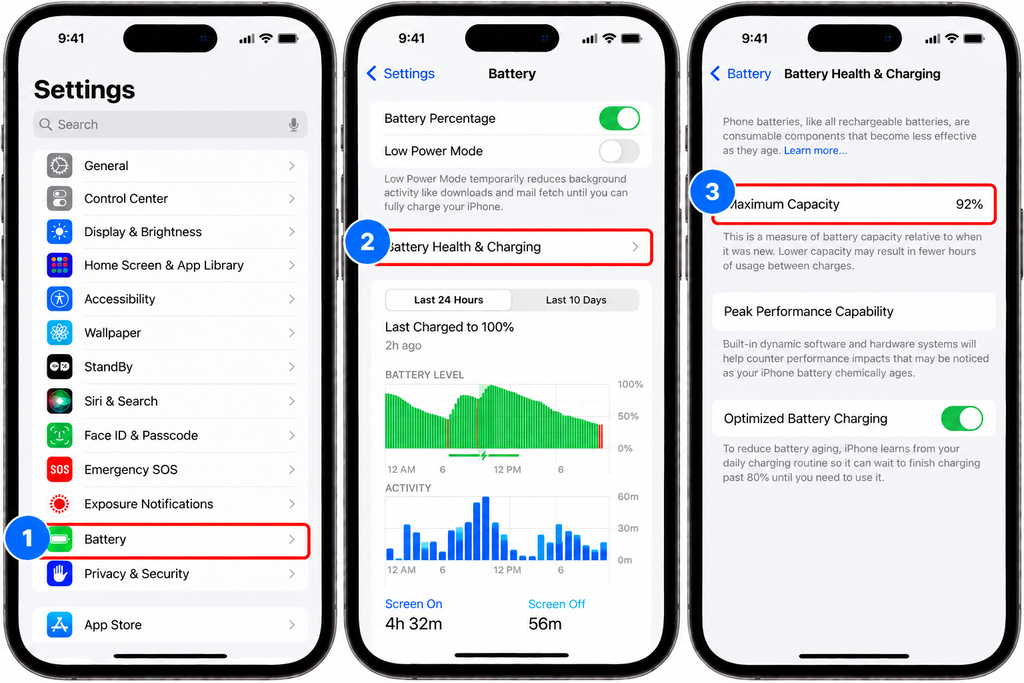
Open Settings → Battery → Battery Health & Charging, then check Maximum Capacity and any battery service recommendations.On iPhone 14 and earlier, the menu may appear as:
Settings → Battery → Battery Health & Charging
Apple uses different Battery Health menu wording depending on the iPhone model. Apple Support
Review the available battery health information.
Rechargeable batteries naturally lose capacity as they age. If iOS displays a battery service recommendation, battery replacement may be worth considering.
Do not assume the iOS update caused battery degradation simply because battery drain became noticeable afterward. The update may simply make an existing battery-health problem more apparent.
12. Avoid Excessive Heat
High temperatures can affect battery performance and long-term battery health.
Avoid leaving your iPhone:
- In direct sunlight
- Inside a hot vehicle
- Near heaters or other heat sources
- Under blankets or other materials that trap heat while charging
If the phone becomes unusually warm, allow it to cool down before performing demanding tasks.
Activities such as gaming, video editing, navigation, large downloads, and background processing after an update can temporarily increase device temperature.
If the iPhone remains extremely hot during light use even several days after the update, investigate the problem further.
13. Keep Optimized Battery Charging Enabled
Optimized Battery Charging is designed to help reduce long-term battery aging by limiting how long the battery remains fully charged.
The menu differs by iPhone model.
For iPhone 15 and later, open:
Settings → Battery → Charging
For iPhone 14 and earlier, open:
Settings → Battery → Battery Health & Charging
Apple says Optimized Battery Charging is enabled by default when an iPhone is set up. Apple Support
On iPhone 15 and later, you may also see Charge Limit options that allow you to choose a maximum charging level between 80% and 100%. Apple Support
Optimized Battery Charging is mainly designed to protect long-term battery health rather than immediately fix post-update battery drain, so there is usually no reason to disable it while troubleshooting.
14. Check for Another iOS Update
If your iPhone battery is still draining unusually fast several days after the original update, check whether Apple has released another iOS update.
Installing a newer iOS version may help if the iPhone battery draining fast after iOS update issue is caused by a software bug.
Open:
Settings → General → Software Update
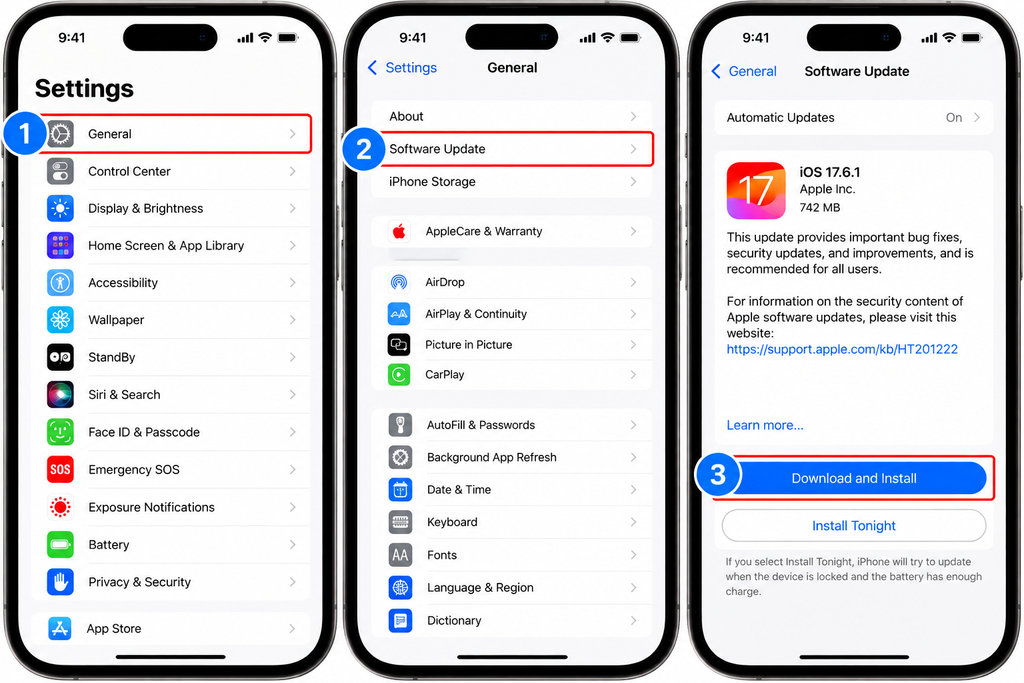
Open Settings → General → Software Update, then download and install any available iOS update.Install any available update.
Follow-up releases may include:
- Bug fixes
- Security updates
- Compatibility improvements
- System stability improvements
After installing another iOS update, keep in mind that background update tasks may temporarily increase battery usage again.
Give the device some time before evaluating battery life.
When Should You Be Concerned About Battery Drain?
Temporary battery drain immediately after updating iOS is not necessarily a sign of a serious problem.
However, investigate further if:
- Battery drain remains severe after several days
- The iPhone becomes unusually hot during light use
- The phone unexpectedly shuts down
- One app consistently uses an unusually large amount of battery
- Battery Health shows a service recommendation
- Battery life suddenly becomes dramatically worse and does not improve
Check Settings → Battery again to determine whether a particular app or system activity is responsible.
If battery drain remains severe despite normal usage and troubleshooting, the battery or another hardware component may need professional inspection.
Should You Factory Reset Your iPhone?
Usually, no.
A factory reset should not be one of the first solutions for battery drain after an iOS update.
Try the troubleshooting steps above first.
If the problem remains severe and you suspect a deeper software issue, make sure your important data is backed up before considering more advanced recovery options.
A factory reset erases your personal data and requires you to set up the device again, so it should only be considered after simpler troubleshooting methods have failed.
Final Thoughts
If your iPhone battery is draining fast after an iOS update, do not immediately assume that the update damaged your phone or battery.
In many cases, an iPhone battery draining fast after iOS update issue improves once background activity finishes or the app using excessive power is identified.
First, give your iPhone a few days to complete background update tasks.
Then check Battery Usage, update your apps, reduce unnecessary background activity, review Location Services and notifications, and use Low Power Mode when needed.
Also check Battery Health, cellular signal strength, device temperature, and whether another iOS update is available.
In many cases, post-update battery drain improves once background activity finishes or once the app responsible for excessive battery use is identified.
If battery drain remains severe after several days and Battery Health shows a service warning, consider having the battery inspected.
FAQ
Why is my iPhone battery draining fast after an iOS update?
Your iPhone may continue running update-related tasks in the background after installing iOS.
These processes can temporarily increase battery usage and device temperature. Apple recommends waiting a few days and checking battery life again. Apple Support
How long does battery drain last after an iOS update?
There is no exact duration for every device.
In many cases, battery usage improves within a few days after background update tasks finish.
If severe battery drain continues after several days, check Battery Usage, app updates, signal strength, Battery Health, and available iOS updates.
Does an iOS update damage the iPhone battery?
Normally, installing an iOS update does not directly mean the battery has been damaged.
Temporary background activity after the update can increase power consumption, while an older battery may already have reduced capacity.
Should I use Low Power Mode after an iOS update?
You can.
Low Power Mode reduces certain background activities and other power-consuming features, which can help extend battery life while you investigate unusual battery drain. Apple Support
Does Background App Refresh drain battery?
Background activity can contribute to battery use.
If an app does not need to constantly refresh while you are not using it, you can disable Background App Refresh for that particular app rather than disabling the feature for everything.
When should I replace my iPhone battery?
Check Settings → Battery → Battery Health or Battery Health & Charging, depending on your iPhone model.
If iOS displays a battery service recommendation or battery performance has become severely reduced, consider contacting Apple or an authorized service provider. Apple Support