
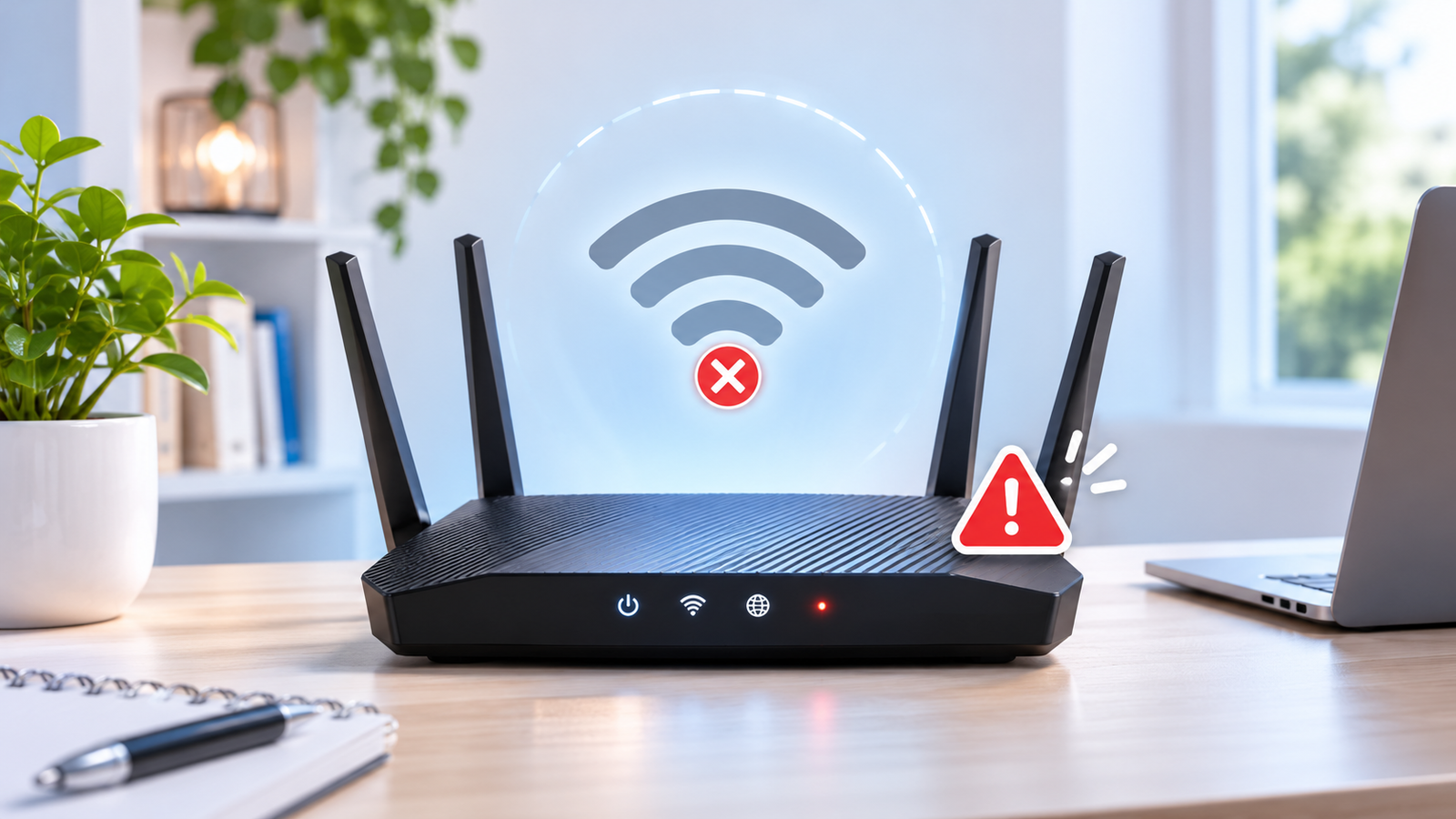
If your Wi-Fi router keeps disconnecting, everyday activities such as streaming videos, attending online meetings, playing games, and browsing the internet can quickly become frustrating.
Sometimes your wireless devices lose their connection entirely. Other times, they remain connected to Wi-Fi but temporarily lose internet access.
These problems may look similar, but they can have different causes.
An unstable wireless connection can result from weak signal strength, interference, outdated router firmware, incorrect network settings, loose cables, or problems with your internet service provider (ISP).
The good news is that you don’t necessarily need to replace your router.
This guide explains 10 practical ways to troubleshoot a Wi-Fi router that keeps disconnecting, starting with simple checks before moving to more advanced settings.
Why Does My Wi-Fi Router Keep Disconnecting?
A Wi-Fi router can lose connectivity for several reasons. Identifying whether the problem affects your wireless network or your internet connection can help you avoid unnecessary changes.
Common causes include:
- Weak Wi-Fi signals or poor router placement
- Interference from nearby wireless networks and appliances
- Temporary router or modem errors
- Loose or damaged Ethernet cables
- Congested Wi-Fi channels
- Outdated router firmware
- Automatic band-switching compatibility issues
- Problems with a connected phone or computer
- Internet service interruptions
- Aging or overheating networking equipment
If your router keeps disconnecting every few minutes, begin by checking whether the problem happens on one device or across your entire home network.
1. Check Whether the Problem Is Wi-Fi or Your Internet Connection
Before restarting equipment or changing settings, determine which connection is actually failing.
Your home network usually includes two separate connections:
Device → Wi-Fi Router → Internet
Your device may remain connected to the router even when the router loses access to the internet.
To identify the problem:
- Connect another phone, laptop, or tablet to the same Wi-Fi network.
- Check whether both devices disconnect at the same time.
- If possible, connect a computer directly to your router using an Ethernet cable.
- Compare the wired connection with the wireless connection.
Use the results to narrow down the cause.
If Wi-Fi disconnects but Ethernet works: The problem is more likely related to wireless interference, router settings, or Wi-Fi coverage.
If both Wi-Fi and Ethernet lose internet access: Investigate the router’s internet connection, modem, cables, or ISP.
If only one device disconnects: The problem may be specific to that device rather than your router.
This initial test can save time by helping you focus on the correct equipment.
2. Restart Your Router and Modem
Restarting your networking equipment is one of the simplest troubleshooting steps.
A router can occasionally experience temporary software errors or connection problems after operating continuously.
A normal restart allows the equipment to initialize its connections again without erasing saved settings.
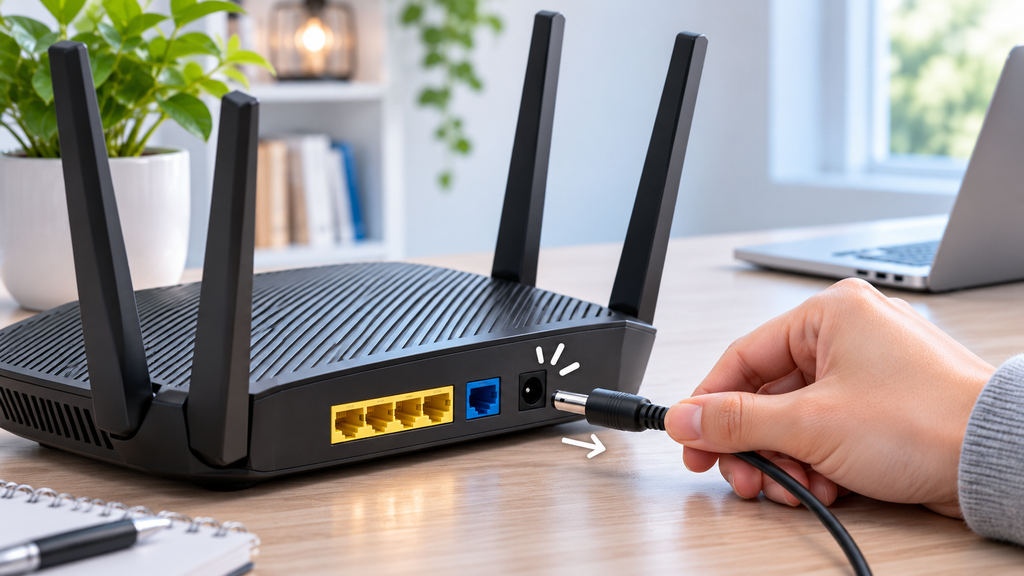
How to Restart Your Router Properly
If you have a separate modem and router:
- Unplug the router’s power cable.
- Unplug the modem’s power cable.
- Wait at least 30 seconds.
- Reconnect the modem first.
- Wait until the modem finishes starting up.
- Reconnect the router.
- Wait a few minutes for the Wi-Fi network to become available.
- Reconnect your devices and test the connection.
If your internet provider supplies a combined modem and Wi-Fi router, restart that single device instead.
Important: Restarting your router is different from performing a factory reset. Do not press the factory reset button during this process.
After restarting, test the connection for a while to see whether the random disconnections return.
3. Check Router Cables and Indicator Lights
A loose or damaged cable can interrupt the connection between your router and modem.
This may cause your Wi-Fi network to remain visible even though internet access keeps disappearing.
Check the following:
- The router’s power adapter is securely connected.
- The Ethernet cable from the modem is plugged into the correct WAN or Internet port.
- Ethernet connectors are not loose or damaged.
- The modem or router does not show an unusual warning light.
- The power supply is stable.
If possible, replace a suspicious Ethernet cable with a known-working one.
Pay attention to the router’s Internet or WAN indicator whenever the connection drops.
If the indicator changes to an error state at the same moment, the problem may be related to the incoming internet connection.
Because indicator colors and meanings differ between brands, consult your router’s manual before interpreting them.
4. Move Your Router to a Better Location
Poor router placement is a common reason for unstable Wi-Fi.
Wireless signals become weaker as they travel through walls, floors, furniture, and other obstacles.
A router placed inside a cabinet or behind a television may struggle to provide reliable coverage throughout your home.
For better wireless performance:
- Position the router in a relatively central area of your home.
- Place it on a shelf or elevated surface.
- Avoid putting it inside enclosed cabinets.
- Keep it away from large metal objects.
- Reduce obstructions between the router and frequently used devices.
- Keep it away from potential interference sources such as microwave ovens.
If your Wi-Fi router keeps disconnecting only in certain rooms, weak coverage may be the cause.
Move closer to the router and test your connection again.
If the connection becomes stable near the router, consider improving its placement before purchasing additional networking equipment.
For larger homes, a properly configured mesh Wi-Fi system may help cover areas that a single router cannot reach reliably.
5. Switch Between 2.4 GHz and 5 GHz Wi-Fi
Many modern routers support more than one wireless frequency band.
The two most common are 2.4 GHz and 5 GHz. Some newer routers also support 6 GHz.
Each band has different advantages.
2.4 GHz Wi-Fi
This band generally offers better range and can perform more reliably through walls.
However, it is often crowded because many nearby wireless devices and networks use the same frequency.
5 GHz Wi-Fi
This band can provide higher speeds and less interference in suitable conditions.
However, its coverage may be weaker at longer distances or through several walls.
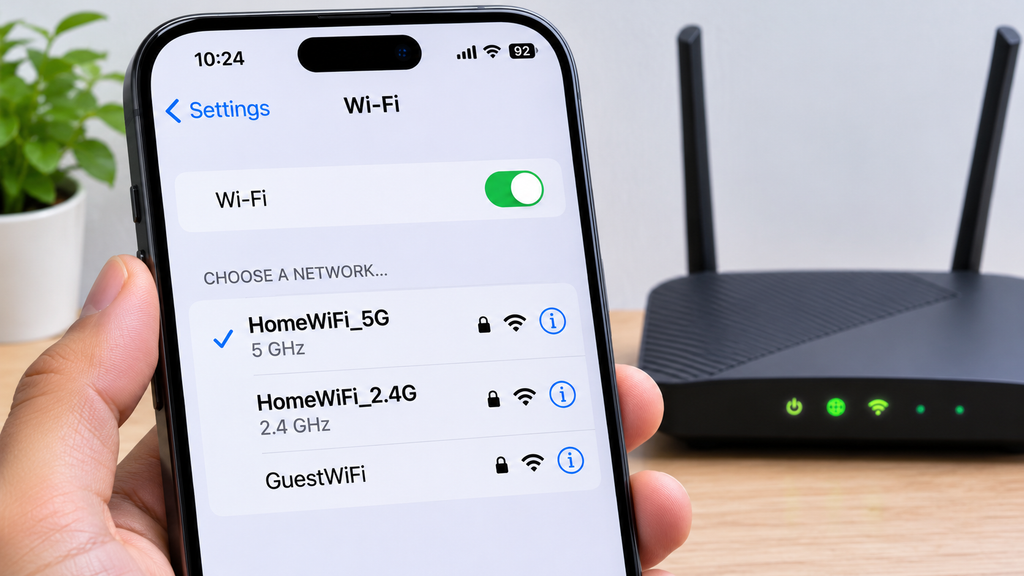
How to Test a Different Wi-Fi Band
- Open the Wi-Fi settings on your phone or computer.
- Check whether your router broadcasts separate 2.4 GHz and 5 GHz network names.
- Connect to the other available band.
- Use the connection normally for several minutes.
- Compare its stability with your previous connection.
If your router uses one network name for both bands, you may need to adjust its wireless settings temporarily to test each band separately.
If one frequency remains stable while the other disconnects, interference, coverage, or band compatibility may be responsible.
6. Change Your Router’s Wi-Fi Channel
Wireless routers communicate using channels within their supported frequency bands.
In neighborhoods or apartment buildings, several routers may operate on overlapping or crowded channels.
This interference can reduce connection quality and sometimes contribute to repeated Wi-Fi disconnections.
Changing the wireless channel may improve stability.
How to Change the Wi-Fi Channel
- Connect to your router’s network.
- Open a web browser.
- Enter your router’s management address, which you can find on the device label, in your network settings, or in its manual.
- Sign in using your router’s administrator credentials.
- Find the Wireless, Wi-Fi, or Advanced Wireless settings.
- Locate the Channel option.
- Select a suitable alternative channel.
- Save the changes and reconnect your devices.
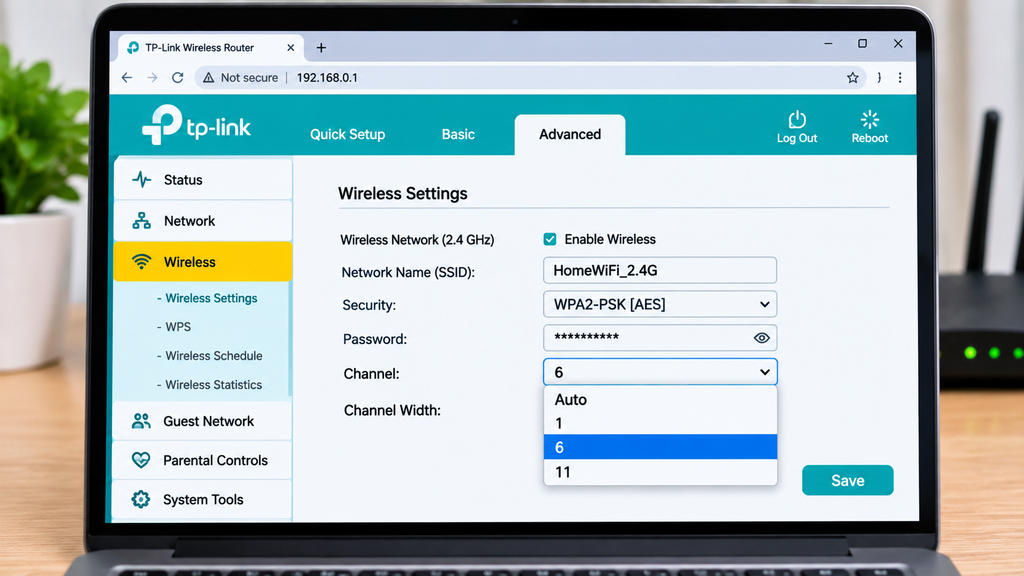
For 2.4 GHz Wi-Fi in the United States, channels 1, 6, and 11 are common non-overlapping choices when using a 20 MHz channel width.
If the router provides a Channel Width setting, testing 20 MHz on 2.4 GHz may reduce interference in crowded environments.
Do not assume that manually selecting a channel is always better than Auto. Compare stability before and after the change.
Note: Router interfaces vary between manufacturers. Some ISP-provided routers may not allow manual channel selection.
7. Update Your Router Firmware
Router firmware is the software that controls the device’s networking features and internal operation.
Manufacturers periodically release updates to address software bugs, security vulnerabilities, compatibility problems, and connection stability.
An outdated firmware version may contribute to random Wi-Fi disconnections on some router models.
How to Update Router Firmware
- Open your router’s official management page or companion app.
- Sign in as an administrator.
- Find a section such as Firmware Update, System, Administration, or Router Update.
- Check whether a newer firmware version is available.
- Follow the manufacturer’s instructions to install the update.
- Allow the router to restart if required.
- Test the Wi-Fi connection afterward.
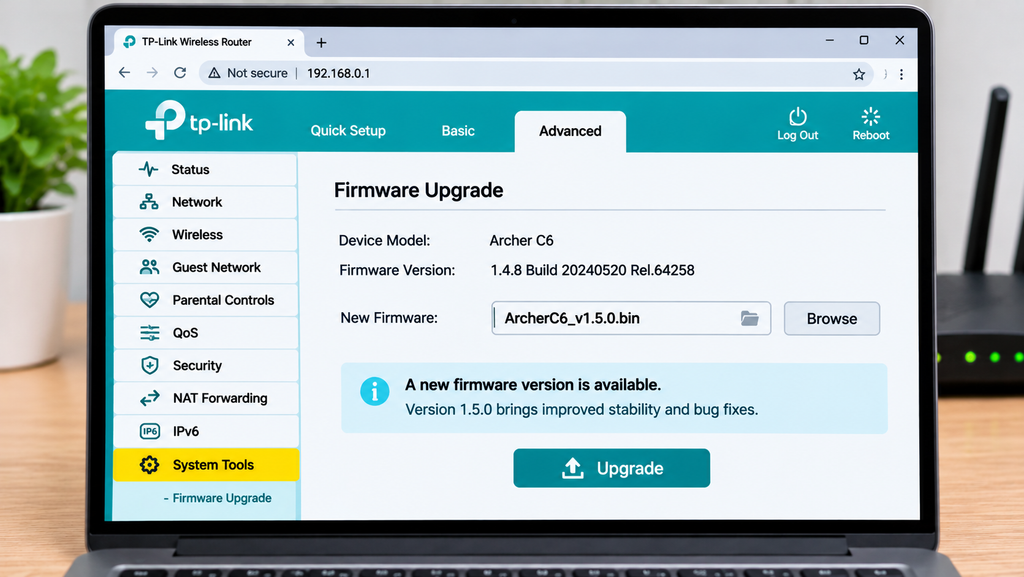
Only install firmware intended for your exact router model and hardware version.
Avoid interrupting power during a firmware update, because doing so can potentially damage the router’s software.
Some routers update automatically, while others require manual updates.
If your router is managed by your internet provider, check whether firmware updates are handled automatically before attempting changes.
8. Check Smart Connect and Mesh Wi-Fi Settings
Some dual-band and tri-band routers include a feature commonly called Smart Connect, band steering, or automatic band selection.
These features help compatible devices choose between available wireless bands.
Although convenient, automatic switching can sometimes cause compatibility problems with certain devices or router firmware versions.
If your Wi-Fi router keeps disconnecting after the earlier troubleshooting steps, test whether automatic band selection is involved.
How to Test Smart Connect
- Sign in to your router’s administration page.
- Open the Wireless or Wi-Fi settings.
- Look for Smart Connect, Band Steering, or a similar option.
- Temporarily disable it if your router supports this.
- Configure separate network names for 2.4 GHz and 5 GHz if necessary.
- Reconnect the affected device to one band.
- Test connection stability.
If the disconnections stop, you may have identified a compatibility issue involving automatic band selection.
If disabling Smart Connect makes no difference, restore your previous configuration.
For mesh Wi-Fi systems, also verify that satellite nodes have a reliable connection to the main router.
A mesh node placed too far from the main unit can create unstable coverage even when the device itself displays a Wi-Fi signal.
9. Forget and Reconnect Problem Devices
Sometimes the router is working normally, but a phone, laptop, or another wireless device continues disconnecting.
In this situation, the saved wireless connection profile or device settings may be causing the problem.
Forgetting the network and reconnecting creates a fresh connection profile on the affected device.
On Windows 11
- Open Settings.
- Select Network & internet.
- Open Wi-Fi.
- Select Manage known networks.
- Find your wireless network.
- Click Forget.
- Reconnect and enter the Wi-Fi password.
On Android
- Open Settings.
- Open Network & internet or Wi-Fi.
- Select the connected network.
- Tap Forget.
- Reconnect using the correct password.
The exact menu names vary between devices and Android versions.
If your laptop still disconnects while other devices remain connected, check its wireless adapter settings and drivers.
For more Windows-specific troubleshooting, read our guide on how to fix Wi-Fi that keeps disconnecting on Windows 11.
If your Android phone stays connected to Wi-Fi but cannot access the internet, see how to fix Android connected to Wi-Fi but no internet.
10. Contact Your ISP or Check for Router Hardware Problems
If none of the previous steps resolve the problem, the issue may be related to your internet provider, modem, router hardware, or power supply.
Before purchasing a replacement router, perform a few final checks.
Check Your Internet Provider
Visit your ISP’s official service-status page using mobile data or another working connection.
Look for reports of service interruptions in your area.
If both wired and wireless devices lose internet access, ask your provider to check the connection.
Check for Overheating
Routers need adequate ventilation.
Make sure your router is not covered by objects or installed inside a tightly enclosed space.
If the device feels unusually hot or repeatedly restarts on its own, inspect its placement, power supply, and condition.
Check the Router’s Age and Condition
Older routers may experience compatibility limitations, aging components, or unreliable operation.
If the router continues failing after firmware updates, cable checks, and troubleshooting, replacement may be appropriate.
However, avoid replacing the router until you have reasonably ruled out problems with your modem or internet service.
How to Tell Whether Your Router Is the Problem
The following symptoms can help identify where the connection is failing.
| Symptom | Possible Cause |
|---|---|
| Wi-Fi drops in distant rooms | Weak signal or poor coverage |
| Every device loses internet at once | Modem, router, cable, or ISP issue |
| Ethernet works but Wi-Fi disconnects | Wireless interference or router settings |
| Only one phone disconnects | Device-specific Wi-Fi settings |
| Wi-Fi drops during automatic band switching | Band steering or compatibility issue |
| Router repeatedly restarts | Firmware, power supply, overheating, or hardware |
| Wi-Fi stays connected but websites fail | Internet connection, DNS, or ISP issue |
These are possible explanations rather than definitive diagnoses.
Testing the connection is more reliable than judging the cause from one symptom alone.
Should You Factory Reset Your Router?
A factory reset should generally be a last resort.
Unlike a normal restart, a factory reset restores the router’s configuration to its default settings.
Depending on the device, this can remove:
- Your custom Wi-Fi network name
- Your Wi-Fi password
- Internet connection settings
- Port forwarding rules
- Parental controls
- Custom DNS settings
- Other network preferences
Some internet providers require specific configuration details to restore connectivity.
Before performing a factory reset, back up your settings if supported and make sure you know how to configure the router again.
If your internet provider manages the router, contact them before resetting it.
Frequently Asked Questions
Why Does My Wi-Fi Router Keep Disconnecting Every Few Minutes?
Frequent disconnections may result from wireless interference, weak coverage, router firmware problems, unstable power, faulty cables, or interruptions from your internet service provider.
Check whether the issue affects multiple devices before changing advanced router settings.
Can Too Many Devices Cause Wi-Fi to Disconnect?
A large number of actively connected devices can increase network congestion and reduce performance, particularly on older or less capable routers.
However, the number of connected devices alone does not necessarily cause a router to disconnect.
If the problem happens during heavy network usage, temporarily pause downloads or disconnect unused devices and test again.
Does Restarting a Router Fix Wi-Fi Problems?
Restarting can resolve some temporary software and connection issues.
However, it will not permanently solve problems caused by poor coverage, ongoing interference, damaged cables, or ISP outages.
If you need to restart your router every day to maintain connectivity, further troubleshooting is necessary.
Should I Use 2.4 GHz or 5 GHz for a More Stable Connection?
Use 2.4 GHz when you need better range or the device is farther from the router.
Try 5 GHz when you are closer to the router and experience congestion on 2.4 GHz.
The better choice depends on your home layout, nearby networks, router capabilities, and connected devices.
Can Old Router Firmware Cause Random Disconnects?
Yes. Certain firmware bugs and compatibility issues can cause unstable wireless behavior.
Updating the router with official firmware for the correct model may improve stability and security.
How Do I Know if I Need a New Router?
Consider replacement if your router repeatedly fails after troubleshooting, no longer receives security updates, has unreliable hardware, or cannot provide the coverage and performance your home needs.
First verify that the problem is not caused by your modem, internet provider, or wireless environment.
Final Thoughts
If your Wi-Fi router keeps disconnecting, start with simple troubleshooting before changing advanced settings or buying replacement equipment.
Check whether the problem affects Wi-Fi or your entire internet connection, restart the modem and router, inspect cables, and improve router placement.
If the connection remains unstable, test another Wi-Fi band, adjust the wireless channel, check firmware updates, and investigate Smart Connect or mesh settings.
The most useful step is identifying whether the disconnection comes from your wireless network, a specific device, or your internet provider.
With a systematic approach, you can often find the cause and restore a more reliable home Wi-Fi connection without unnecessary resets or hardware replacements.
References
For further technical information, see: