
Is Windows 11 running slow after an update? Although Windows updates are designed to improve security, stability, and performance, some users may notice slower startup times, lag, high disk usage, or reduced responsiveness after installing an update.
In many cases, the slowdown is temporary and can be fixed without reinstalling Windows.
Background update tasks, search indexing, driver changes, startup apps, and limited storage are just a few things that can temporarily affect performance.
Here are 16 practical ways to speed up Windows 11 after an update.
Table of Contents
Why Is Windows 11 Running Slow After an Update?
There are several reasons Windows 11 may feel slower after an update.
Common causes include:
- Windows finishing background update tasks
- Search indexing running again
- Driver compatibility problems
- High disk or CPU usage
- Too many startup apps
- Low storage space
- Corrupted update files
- Background apps using system resources
- Antivirus scans running after the update
Before making major changes, give Windows a little time to finish background tasks.
1. Restart Your Computer
The first thing to try is a full restart.
Some Windows updates continue configuring files after the first reboot.
To restart:
- Click the Start button.
- Select Power.
- Click Restart.
Avoid choosing Shut down and turning the computer back on immediately, because Restart can perform a more complete refresh of Windows processes.
After restarting, wait a few minutes and check whether performance improves.
2. Wait for Background Tasks to Finish
Windows may perform several background tasks after an update.
These can include:
- File indexing
- Microsoft Store updates
- Driver installation
- Security scans
- Update cleanup
- Cloud synchronization
During this time, CPU or disk usage may be higher than normal.
Leave the computer running for about 20 to 30 minutes while connected to power.
Then check performance again.
3. Check Task Manager
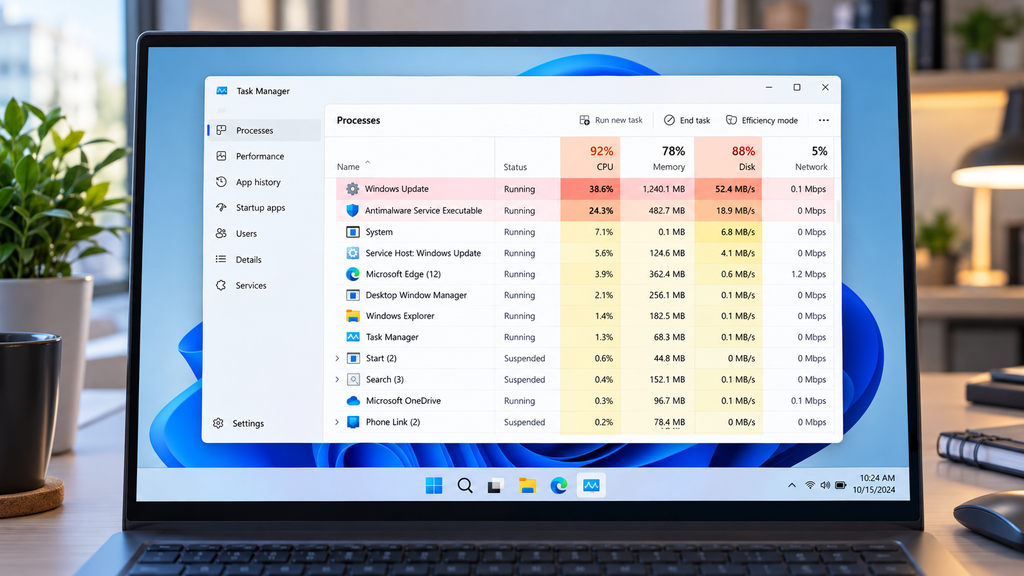
Task Manager can help you identify which program is slowing down your PC.
Press:
Ctrl + Shift + Esc
Open the Processes tab.
Look at the following columns:
- CPU
- Memory
- Disk
If one program is using an unusually high amount of resources, it may be causing the slowdown.
Do not end system processes unless you know what they do.
For normal apps, you can close programs you do not need.
4. Disable Unnecessary Startup Apps
Too many startup programs can make Windows feel slow after booting.
Open:
Settings → Apps → Startup
Review the list.
Disable apps that do not need to launch automatically when Windows starts.
Examples may include:
- Chat apps
- Game launchers
- Music apps
- Cloud utilities you rarely use
- Updaters for unused software
Do not disable security software unless you understand its purpose.
Restart the computer after making changes.
5. Check Available Storage
Windows needs free storage space to work efficiently.
Open:
Settings → System → Storage
Check how much free space is available.
If the drive is nearly full, remove files you no longer need.
You can delete:
- Temporary files
- Old downloads
- Large videos
- Unused applications
- Recycle Bin contents
Keeping free storage available can improve overall system performance.
6. Remove Temporary Files
Windows updates can leave temporary installation files behind.
To remove them:
- Open Settings.
- Go to System.
- Select Storage.
- Open Temporary files.
- Review the items.
- Select the files you want to remove.
- Click Remove files.
Be careful with the Downloads folder if important files are stored there.
7. Install Additional Windows Updates
Sometimes a problem introduced by one update is fixed by a later update.
Open:
Settings → Windows Update
Click:
Check for updates
Install any available updates and restart your computer.
Also check:
Advanced options → Optional updates
Optional driver updates may help if the slowdown is related to hardware compatibility.
8. Update Device Drivers
An outdated or incompatible driver can cause poor performance after a Windows update.
Important drivers include:
- Graphics
- Wi-Fi
- Chipset
- Storage
- Audio
You can check Device Manager:
- Right-click the Start button.
- Select Device Manager.
- Find the device.
- Right-click it.
- Select Update driver.
For graphics drivers, you may also want to use the official software from your GPU manufacturer.
9. Turn Off Unnecessary Visual Effects
Windows 11 includes animations and visual effects that can use additional system resources.
To reduce them:
- Press Windows + R.
- Type:
sysdm.cpl
- Press Enter.
- Open the Advanced tab.
- Under Performance, click Settings.
You can choose:
Adjust for best performance
or manually disable effects you do not need.
This can make older or lower-powered computers feel more responsive.
10. Check Power Mode
Windows may use a power-saving mode that limits performance.
Open:
Settings → System → Power & battery
Find:
Power mode
If available, choose:
Best performance
when the laptop is connected to power.
Keep in mind that this setting may increase battery use and heat.
11. Scan for Malware
Malware or unwanted programs can also cause high CPU, disk, or memory usage.
Open:
Windows Security → Virus & threat protection
Select:
Quick scan
If you suspect a deeper problem, you can also run a full scan.
Keeping Windows Security updated helps protect your computer from unwanted software.
12. Turn Off Background Apps You Do Not Need
Some apps continue running in the background even when you are not actively using them.
Open:
Settings → Apps → Installed apps
Select an app, open its advanced settings if available, and review background permissions.
Limit background activity for apps you rarely use.
The exact options available depend on the application.
13. Check for High Disk Usage
If Task Manager shows disk usage near 100%, the computer may feel very slow.
Common causes include:
- Windows Search indexing
- Antivirus scans
- Update cleanup
- Cloud syncing
- Large file transfers
Wait for these tasks to finish before making major changes.
If high disk usage continues for hours, identify the process using the Disk column in Task Manager.
14. Repair Windows System Files
Corrupted Windows files can sometimes cause performance problems.
Open Command Prompt as Administrator and run:
DISM /Online /Cleanup-Image /RestoreHealth
Wait for the process to finish.
Then run:
sfc /scannow
Restart the computer afterward.
These tools can repair damaged Windows system files.
15. Uninstall the Recent Update
If the slowdown started immediately after a specific update and nothing else helps, you may consider uninstalling that update.
Open:
Settings → Windows Update → Update history → Uninstall updates
Select the recent update and choose:
Uninstall
Only do this if the problem clearly started after the update.
Windows may reinstall the update later.
16. Use System Restore
If System Restore was enabled before the problem started, you may be able to return Windows to an earlier state.
Search for:
Create a restore point
Then open:
System Restore
Choose a restore point created before the performance problem began.
System Restore does not normally delete personal files, but it can remove recently installed drivers or programs.
Should You Reset Windows 11?
Resetting Windows should be a last resort.
Try the other solutions first.
If the computer remains extremely slow and the problem cannot be fixed, you can open:
Settings → System → Recovery → Reset this PC
Windows gives you options to keep or remove personal files.
Back up important files before starting a reset.
How Long Can Windows Be Slow After an Update?
Temporary slowdown can happen for a short time after a large update.
Windows may still be:
- Rebuilding search indexes
- Updating apps
- Optimizing files
- Running security scans
Performance often improves once these tasks finish.
If the PC remains slow for several hours or days, investigate Task Manager, drivers, storage, and update history.
Is the Update Always the Cause?
Not necessarily.
The slowdown may happen at the same time as an update but be caused by something else.
Possible causes include:
- A failing storage drive
- Low available RAM
- Too many startup programs
- Malware
- Overheating
- A damaged driver
Checking Task Manager can help narrow down the cause.
Final Thoughts
If Windows 11 is running slow after an update, start with the simplest solutions: restart your PC and give Windows enough time to finish background update tasks.
Next, check Task Manager, disable unnecessary startup apps, free up storage space, update drivers, and install any newer Windows updates.
If the slowdown started immediately after one specific update and continues after troubleshooting, uninstalling that update may help. Resetting Windows should remain a last resort.
In most cases, you can restore normal Windows 11 performance without reinstalling the operating system.
FAQ
Why is Windows 11 slow right after an update?
Windows may still be indexing files, installing drivers, updating apps, or running background maintenance tasks.
Should I uninstall a Windows update if my PC is slow?
Only consider uninstalling it if the slowdown clearly started after that update and other troubleshooting steps do not help.
Does restarting Windows help after an update?
Yes. A restart can finish pending update processes and clear temporary system problems.
Can low storage make Windows 11 slow?
Yes. A nearly full system drive can reduce Windows performance and make updates more difficult.
Will resetting Windows make my PC faster?
It can help if software problems are severe, but it should be a last resort after simpler troubleshooting steps have failed.
3 pemikiran pada “How to Fix Windows 11 Running Slow After an Update”