
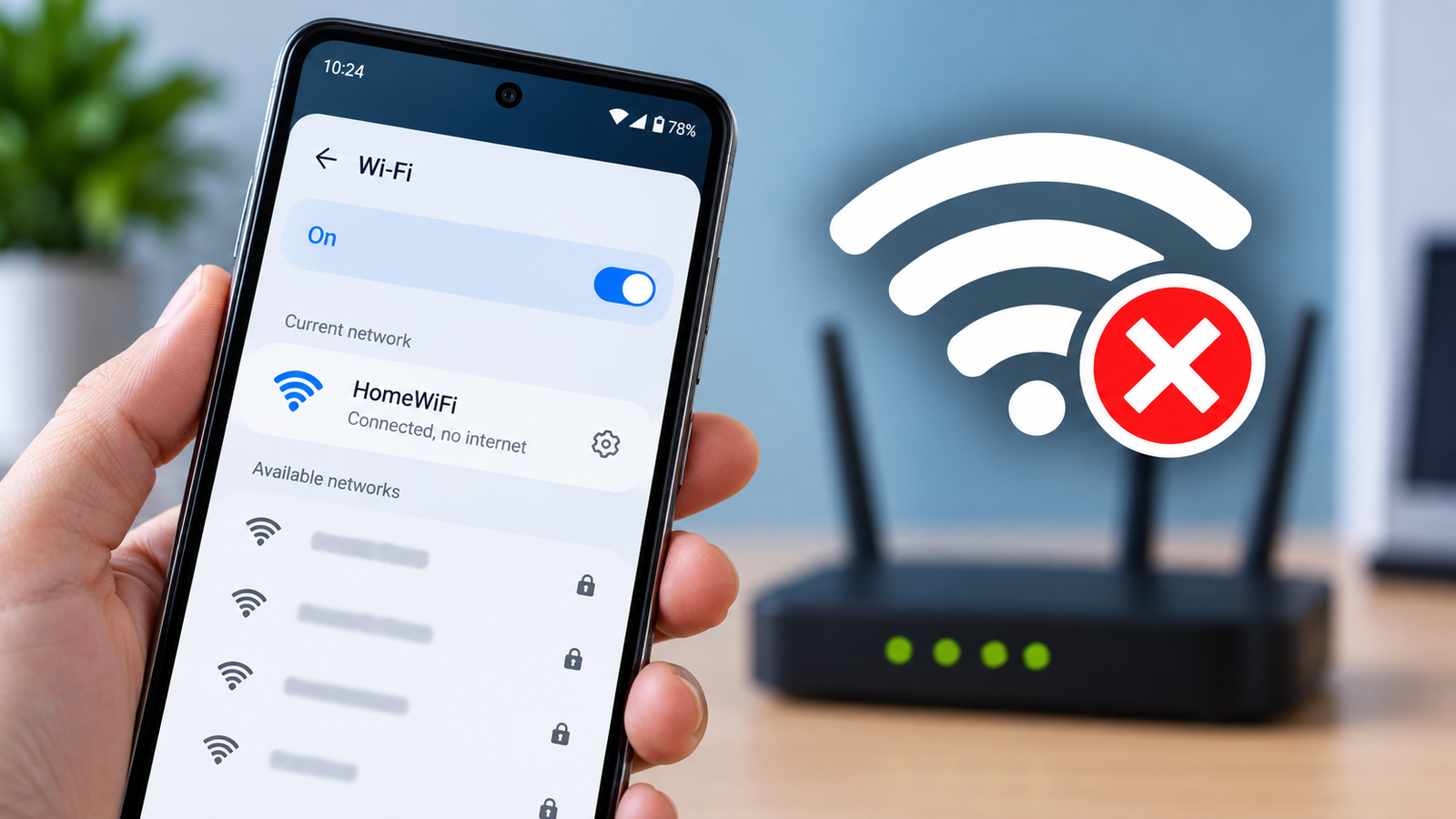
Android connected to Wi-Fi but no internet? This is a common problem where your phone shows a normal Wi-Fi connection, but websites, apps, and online services still refuse to load.
This can be frustrating because everything appears normal at first. Your phone is connected to the router, but there is still no actual internet access.
The problem may come from your Android phone, router, network settings, DNS configuration, VPN, or even your internet service provider.
Fortunately, most Wi-Fi problems on Android can be fixed with a few simple troubleshooting steps.
Here is what to try.
Why Is Android Connected to Wi-Fi but No Internet?
If your Android phone is connected to Wi-Fi but has no internet, the connection between your phone and router may be working while the router itself is unable to reach the internet.
Common causes include:
- Router or modem problems
- Temporary network errors
- Incorrect IP settings
- DNS problems
- VPN interference
- Outdated Android software
- Network authentication issues
- Weak or unstable Wi-Fi signals
- Problems with your internet service provider
The best approach is to start with the simplest fixes first.
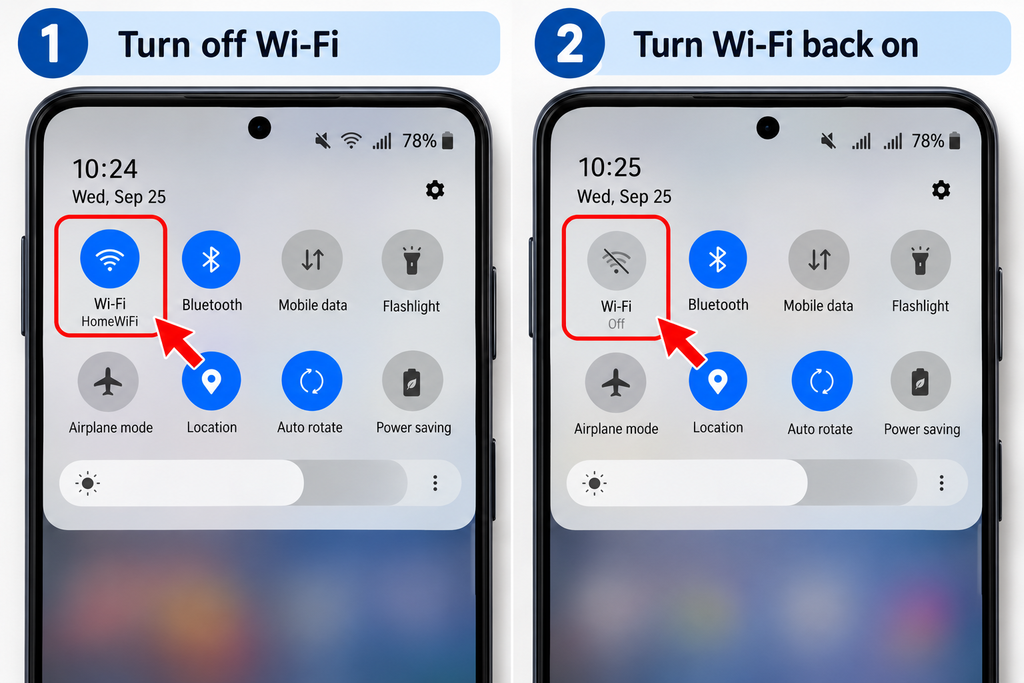
1. Turn Wi-Fi Off and Back On
Start by refreshing your phone’s Wi-Fi connection.
Swipe down from the top of the screen to open Quick Settings, then tap the Wi-Fi icon to turn it off.
Wait about 10 seconds and turn Wi-Fi back on.
Reconnect to your network and try opening a website or app again.
This simple step can often fix temporary connection problems.
Then try opening a website or app again.
2. Turn Airplane Mode On and Off
Airplane Mode can refresh your phone’s wireless connections.
Swipe down to open Quick Settings and turn on Airplane Mode.
Wait about 10 to 15 seconds, then turn Airplane Mode off.
Reconnect to Wi-Fi and check whether the internet is working again.
3. Restart Your Android Phone
A temporary software issue can sometimes prevent Android from accessing the internet correctly.
Restarting your phone clears many temporary processes and can restore the network connection.
Press and hold the power button, then select:
Restart
After your phone turns back on, reconnect to Wi-Fi and test the connection.
4. Restart Your Router
If your phone connects to Wi-Fi but cannot access the internet, the router may be causing the problem.
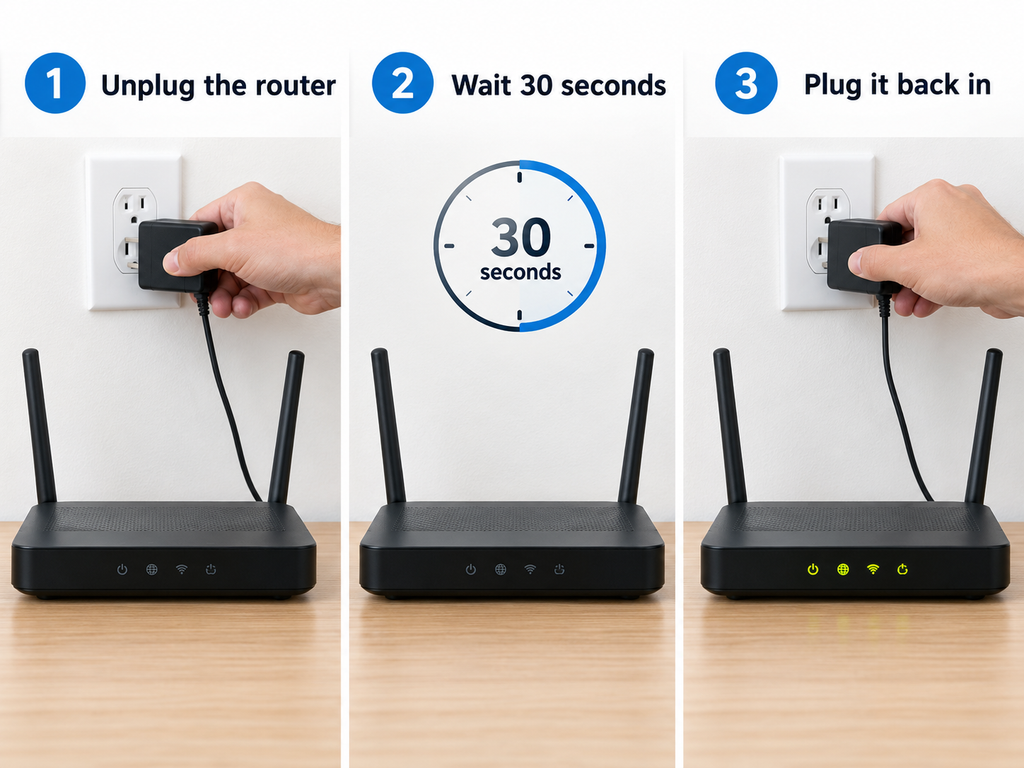
Unplug your router from the power outlet and wait about 30 seconds.
Plug it back in and wait a few minutes for the router to reconnect to the internet.
Then reconnect your Android phone.
If other devices also have no internet connection, the problem is more likely related to the router, modem, or internet provider rather than your phone.
5. Forget the Wi-Fi Network and Reconnect
Your Android phone may have saved incorrect or outdated network information.
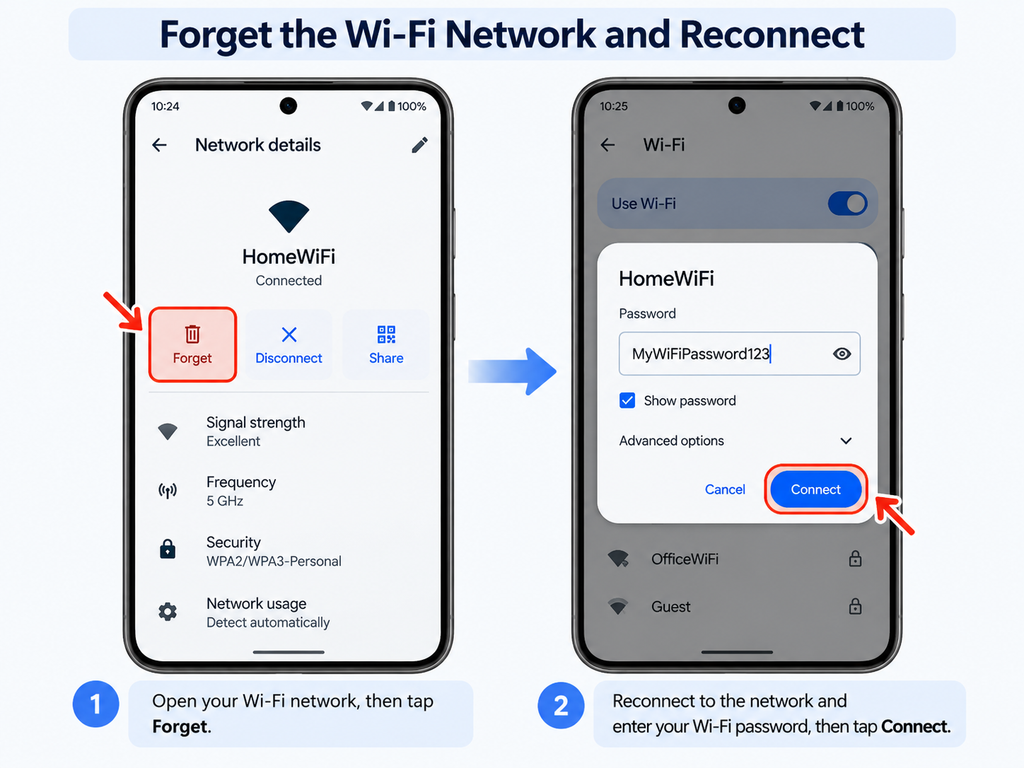
Forgetting the Wi-Fi network and reconnecting can create a fresh connection.
Open:
Settings → Network & internet → Internet
or:
Settings → Wi-Fi
The exact menu name may vary depending on your phone manufacturer and Android version.
Tap your Wi-Fi network and select:
Forget
Reconnect to the network and enter your Wi-Fi password again.
Then test the internet connection.
6. Check Whether Other Devices Have Internet
Before changing additional settings, check the same Wi-Fi network on another device.
You can test it using another phone, laptop, tablet, or smart TV.
If none of the devices can access the internet, the problem is probably related to your router, modem, or internet provider.
If other devices work normally but your Android phone does not, continue with the troubleshooting steps below.
7. Move Closer to the Router
A weak or unstable Wi-Fi signal can sometimes keep your phone connected while preventing reliable internet access.
Move closer to the router and test the connection again.
Walls, furniture, appliances, and other electronic devices can weaken Wi-Fi signals.
If the internet starts working normally when you move closer to the router, Wi-Fi signal strength may be the main problem.
8. Disable Your VPN Temporarily
A VPN can sometimes interfere with your internet connection.
If you are using a VPN, temporarily disconnect it.
Then open a website or app again.
If the internet works after disabling the VPN, the VPN server or its configuration may be causing the connection problem.
You can try switching to another VPN server before enabling it again.
9. Turn Off Private DNS Temporarily
Android includes a Private DNS feature that can improve privacy and security, but an incorrect or unavailable DNS provider may prevent internet access.
Open:
Settings → Network & internet → Private DNS
The location of this setting may vary depending on your Android device.
Select:
Automatic
If the problem continues, you can temporarily select:
Off
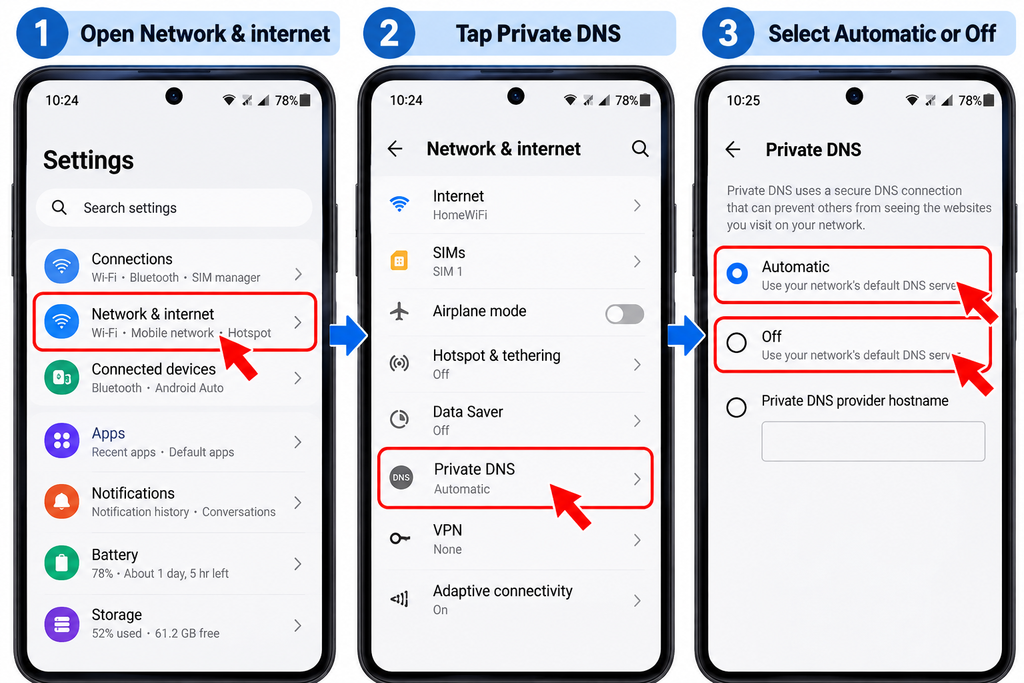
Test the internet connection again.
If Wi-Fi starts working, your previous Private DNS configuration may have been causing the problem.
10. Check Date and Time Settings
Incorrect date and time settings can sometimes cause problems with secure websites, apps, and online services.
Open:
Settings → System → Date & time
Enable:
Set time automatically
and:
Set time zone automatically
Then reconnect to Wi-Fi and test your connection again.
11. Disable Mobile Data Temporarily
In some cases, switching between Wi-Fi and mobile data can temporarily interfere with the connection.
Swipe down from the top of the screen and turn off:
Mobile data
Leave Wi-Fi enabled and try opening a website.
If Wi-Fi works normally, you can turn mobile data back on afterward.
12. Check IP Settings
Most home Wi-Fi networks should use automatic IP configuration.
If your Android phone is using an incorrect static IP address, it may connect to Wi-Fi without being able to access the internet.
Open your Wi-Fi network settings and look for:
IP settings
Make sure it is set to:
DHCP
instead of Static, unless your network specifically requires a manually configured IP address.
Save the settings and reconnect to the network.
13. Reset Network Settings
If the previous steps do not work, resetting Android’s network settings may fix deeper configuration problems.
On many Android phones, open:
Settings → System → Reset options
Then select an option similar to:
Reset Wi-Fi, mobile & Bluetooth
The exact wording may vary depending on your device.
A network reset may remove saved Wi-Fi networks, Bluetooth connections, and other network preferences.
It does not normally delete your photos, videos, apps, or personal files.
After the reset, reconnect to your Wi-Fi network and enter the password again.
14. Update Android
Android software updates often include security improvements, bug fixes, and network connectivity fixes.
Open:
Settings → System → Software update
or:
Settings → Software update
Check for available updates.
If an update is available, install it and restart your phone before testing Wi-Fi again.
15. Check for a Wi-Fi Sign-In Page
Some public Wi-Fi networks require you to sign in or accept their terms before accessing the internet.
This is common in hotels, airports, cafes, shopping centers, schools, and other public places.
Connect to the Wi-Fi network and open your browser.
Try visiting a website.
A Wi-Fi sign-in page may appear automatically.
Complete the login process or accept the network terms, then try accessing the internet again.
16. Check Your Internet Provider
If every device connected to your Wi-Fi network has no internet access, your internet service provider may be experiencing an outage.
Check the indicator lights on your router or modem for unusual warning lights.
You can also check your provider’s service status or contact customer support.
If the connection stopped working suddenly and you did not change anything on your phone or router, an ISP outage may be the cause.
Why Does Wi-Fi Say Connected Without Internet?
Wi-Fi and internet access are not the same thing.
Your Android phone can successfully connect to your router even when the router itself cannot connect to the internet.
There are essentially two separate connections:
Phone → Router
and:
Router → Internet
The connection between your phone and router may work normally while the router’s internet connection is unavailable.
That is why Android can show that Wi-Fi is connected even though websites and apps do not load.
Should You Reset the Router?
Restarting your router is generally safe and should be tried before performing a factory reset.
A router factory reset is different from simply restarting it.
Resetting a router to factory settings may erase your Wi-Fi network name, password, internet configuration, and custom router settings.
Avoid performing a factory reset unless you know how to configure the router again or your internet provider specifically recommends it.
What If Only One App Has No Internet?
If Wi-Fi works normally in your browser and other apps but one specific app cannot connect, the problem may be with that app rather than your Wi-Fi network.
Try closing and reopening the app first.
You can also update the app, restart your phone, or clear the app’s cache from Android settings.
If every other app works normally, there is usually no reason to reset your Wi-Fi or network settings.
Final Thoughts
The Android connected to Wi-Fi but no internet problem can usually be fixed without performing a factory reset.
Start by restarting Wi-Fi, your phone, and your router. If the problem continues, forget and reconnect to the network, disable your VPN or Private DNS temporarily, check IP settings, and consider resetting your network settings.
If other devices also cannot access the internet, the problem is more likely related to your router, modem, or internet service provider.
In most cases, one of these troubleshooting steps should restore your Android phone’s internet connection.
FAQ
Why does my phone say connected to Wi-Fi but no internet?
Your phone may be successfully connected to the router while the router itself has no active internet connection. DNS problems, incorrect network settings, router issues, or an ISP outage can also cause this problem.
Will forgetting a Wi-Fi network delete my data?
No. Forgetting a Wi-Fi network only removes the saved network information and password from your phone. It does not delete your photos, apps, videos, or personal files.
Does resetting network settings delete photos?
No. Resetting network settings normally removes Wi-Fi networks, Bluetooth connections, and network preferences. Your personal photos, videos, apps, and files should remain unchanged.
Why does Wi-Fi work on other devices but not my Android phone?
The problem may be related to your phone’s saved Wi-Fi configuration, VPN, DNS settings, IP configuration, or another Android network setting.
Forgetting the network and reconnecting is often a good first step.
Should I factory reset my Android phone?
A factory reset should be considered a last resort.
Before doing that, try restarting your phone, resetting network settings, forgetting and reconnecting to Wi-Fi, checking your VPN or DNS settings, and installing available Android updates.
A factory reset erases personal data, so make sure you have a backup before considering it.