
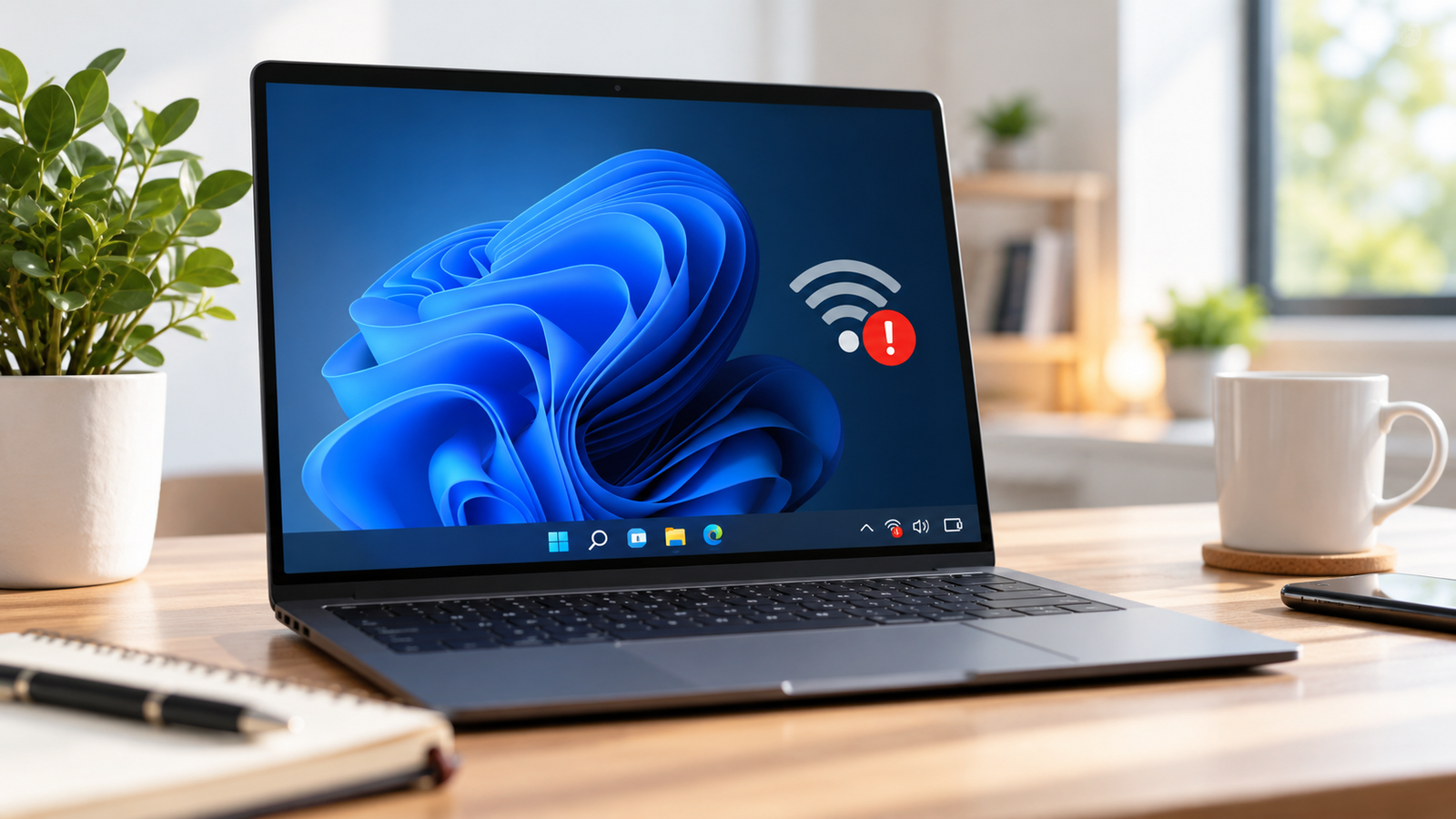
A Wi-Fi connection that repeatedly disconnects can make browsing, video calls, downloads, and everyday work frustrating.
The problem can come from something simple, such as a temporary router issue, or from Windows settings, the wireless adapter, or its driver.
The good news is that you usually do not need to reinstall Windows or make complicated changes. Start with the simple fixes below and move to the more advanced steps only if the problem continues.
Start With the Simple Fixes
Before changing Windows settings, try these quick checks:
- Turn Wi-Fi off and back on.
- Restart your Windows 11 PC.
- Restart your modem and Wi-Fi router.
- Move closer to the router and test the connection again.
- Check whether another phone or computer is also disconnecting.
If several devices have the same problem, the issue may be related to the router or internet connection rather than your Windows 11 PC.
Microsoft also recommends restarting the modem and wireless router as part of its general Wi-Fi troubleshooting process.
Forget the Wi-Fi Network and Reconnect
A saved Wi-Fi profile can occasionally cause connection problems. Removing the network and connecting again forces Windows to create a fresh connection profile.
To forget a Wi-Fi network:
- Open Settings.
- Select Network & internet.
- Click Wi-Fi.
- Open Manage known networks.
- Find your Wi-Fi network.
- Click Forget.
- Return to the available Wi-Fi networks.
- Select your network and enter the Wi-Fi password again.
Microsoft includes forgetting and reconnecting to the network among its recommended Windows Wi-Fi troubleshooting steps.
Run the Windows Network Troubleshooter
Windows 11 includes built-in network diagnostics that can automatically identify some connection problems.
Open Get Help or the network troubleshooting options in Windows and run the Network and Internet troubleshooter.
Follow the instructions Windows provides and then test your Wi-Fi connection again.
Microsoft recommends starting with its automated Network and Internet troubleshooter on Windows 11 devices.
Disable Wi-Fi Adapter Power Saving
Windows can turn off some hardware to save power. On certain laptops, this can contribute to a Wi-Fi adapter disconnecting unexpectedly.
To check the setting:
- Right-click the Start button.
- Select Device Manager.
- Expand Network adapters.
- Find your wireless or Wi-Fi adapter.
- Right-click it and choose Properties.
- Open the Power Management tab.
- Uncheck Allow the computer to turn off this device to save power.
- Click OK.
- Restart the computer.
Not every Wi-Fi adapter displays this option, so do not worry if the Power Management tab is unavailable.
Microsoft lists disabling power saving for the Wi-Fi adapter as one troubleshooting option for wireless connection problems.
Check the Wi-Fi Driver
A damaged or incompatible wireless driver can also cause unstable connections.
Start by opening:
Device Manager → Network adapters
Find your Wi-Fi adapter, right-click it, and check its properties.
You can also visit the support website for your laptop or motherboard manufacturer and check whether a newer Wi-Fi driver is available for your exact model.
If the connection problem started after an update and the previous fixes did not help, Microsoft suggests uninstalling the network adapter driver and restarting the computer. Windows will normally attempt to reinstall the adapter after the restart. Microsoft recommends having a backup driver available before doing this.
Reset the Windows Network Stack
Windows includes several commands that can reset important networking components.
Open Command Prompt as administrator, then run these commands one at a time:
netsh winsock reset
netsh int ip reset
ipconfig /release
ipconfig /renew
ipconfig /flushdns
Restart the computer after running the commands and test the connection again.
These commands reset Winsock and TCP/IP settings, renew the IP configuration, and clear the DNS resolver cache. Microsoft includes the same command sequence in its Windows connectivity troubleshooting guidance.
Try a Different Wi-Fi Band
Many modern routers provide both 2.4 GHz and 5 GHz Wi-Fi.
If both networks are available, try connecting to the other band.
For example:
- 2.4 GHz generally reaches farther and can work better through walls.
- 5 GHz can provide better performance at shorter distances, depending on the router and environment.
If one band remains stable while the other repeatedly disconnects, the problem may be related to signal conditions, router configuration, or the wireless adapter.
Microsoft specifically recommends trying another available Wi-Fi frequency band as part of connection troubleshooting.
Check for Windows Updates
Open:
Settings → Windows Update → Check for updates
Install available updates and restart the PC when required.
Windows updates can include fixes and updated components related to networking. Microsoft includes checking Windows Update among its recommended Wi-Fi troubleshooting steps.
Use Network Reset as a Last Resort
If nothing else works, Windows 11 includes a more complete Network reset option.
Go to:
Settings → Network & internet → Advanced network settings → Network reset
Select Reset now and confirm.
Windows will remove and reinstall network adapters and return their networking settings to their defaults.
Because this is a broader reset, Microsoft recommends using it only after the other troubleshooting steps have failed. You may also need to reconfigure VPN software or some other networking tools afterward.
How to Tell Whether the Problem Is Your PC or Router
A quick comparison can save a lot of unnecessary troubleshooting.
If only your Windows 11 PC disconnects, focus on:
- Wi-Fi adapter settings
- drivers
- Windows networking
- power management
If all devices disconnect, focus more on:
- the router
- modem
- signal strength
- your internet service
Microsoft similarly recommends testing the same Wi-Fi network with another device to help determine whether the problem is specific to the PC.
Frequently Asked Questions
Why does my Windows 11 Wi-Fi keep disconnecting randomly?
Possible causes include a temporary router problem, weak wireless signal, a saved network profile, Wi-Fi adapter power management, driver issues, or damaged network settings.
Should I reset my network immediately?
No. Try the simpler fixes first. Microsoft describes Network reset as a final troubleshooting step because it removes and reinstalls network adapters and resets their settings.
Will forgetting my Wi-Fi network delete the router password?
No. It only removes the saved Wi-Fi profile from that Windows PC. You will need to enter the Wi-Fi password again when reconnecting.
Can a driver cause Wi-Fi disconnections?
Yes. If the wireless adapter driver is damaged or has compatibility problems, reinstalling the driver can sometimes restore a stable connection. Microsoft includes network-adapter driver reinstallation in its troubleshooting guidance.
Final Thoughts
When Wi-Fi keeps disconnecting in Windows 11, start with the easiest fixes before making major changes.
Restart the PC and router, reconnect to the Wi-Fi network, run Windows troubleshooting, and check the adapter settings. If the connection is still unstable, move on to the driver, network commands, and finally Network reset.
Working through the fixes in this order makes it easier to identify the real cause without changing more settings than necessary.